Receipt Upload Portal
Table of Contents
- 1. Welcome
- 2. Logging In
- 3. Resetting Your Password (If You Forgot It)
- 4. Sending a Receipt
- 5. Reviewing and Submitting the Receipt
- 6. Sending Several Receipts at Once (Batch Mode)
- 7. Viewing Your Receipts
- 8. Viewing Receipt Details
- 9. Changing Your Password
- 10. Updating Your Name or Email
- 11. Logging Out
- 12. Using Dark Mode
- 13. Reviewing Check Runs (Signers & Trustees)
- 14. Bank Reconciliations (Signers & Trustees)
- 15. Payment Methods (Check and ACH)
- 16. Connecting QuickBooks (Organization Owners)
- 17. Financial Statements
- 18. Check Requests
- 19. SCRIP Gift Cards
- 20. Mass Stipends
- 21. Uploading Other Documents
- 22. Saved Profiles & Switching Accounts
- 23. Settings — Bill Allocations
- 24. Understanding Banners and Badges
- 25. Troubleshooting & Common Questions
1. Welcome
This portal lets you send pictures of your receipts and invoices to your parish. Your accountant reviews them and records them in the parish accounting system (QuickBooks).
Don't worry if you make a mistake — you can always go back and correct things before your accountant records the receipt.
What You Need
- An email address and password from your administrator
- A computer, tablet, or phone with internet access
- Your receipts (paper or digital)
2. Logging In
On a Computer
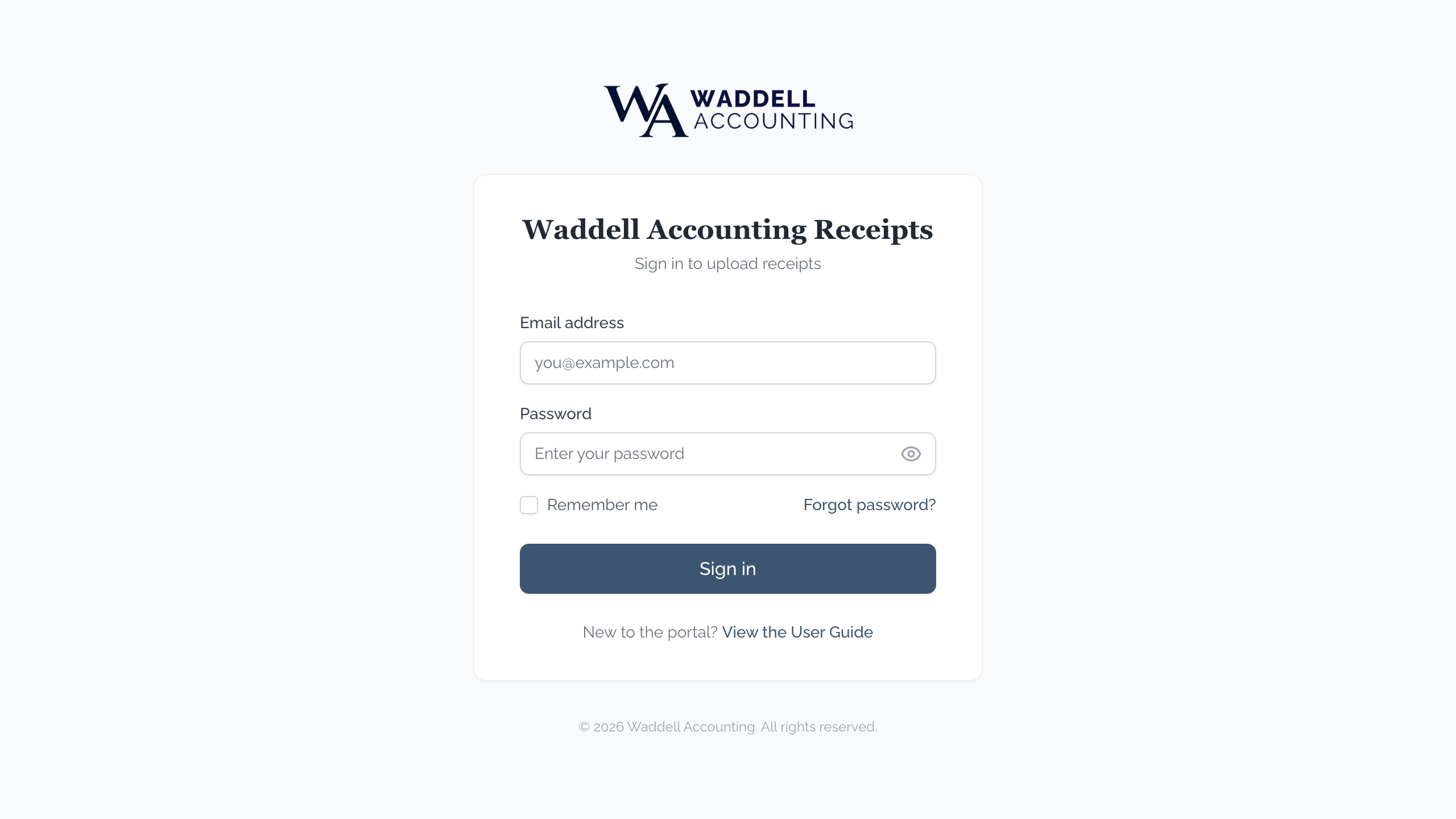
- Open your internet browser (Chrome, Safari, Edge, or Firefox).
- Type the portal address into the long box at the top of your browser window. Your administrator will give you this address.
- Type your email address in the "Email" box.
- Type your password in the "Password" box.
- (Optional) Check "Remember me" if you are on your own personal computer.
- You may be asked to check a box to prove you are not a robot. Check the box and follow any instructions if prompted.
- Click the "Sign in" button.
On a Phone or Tablet
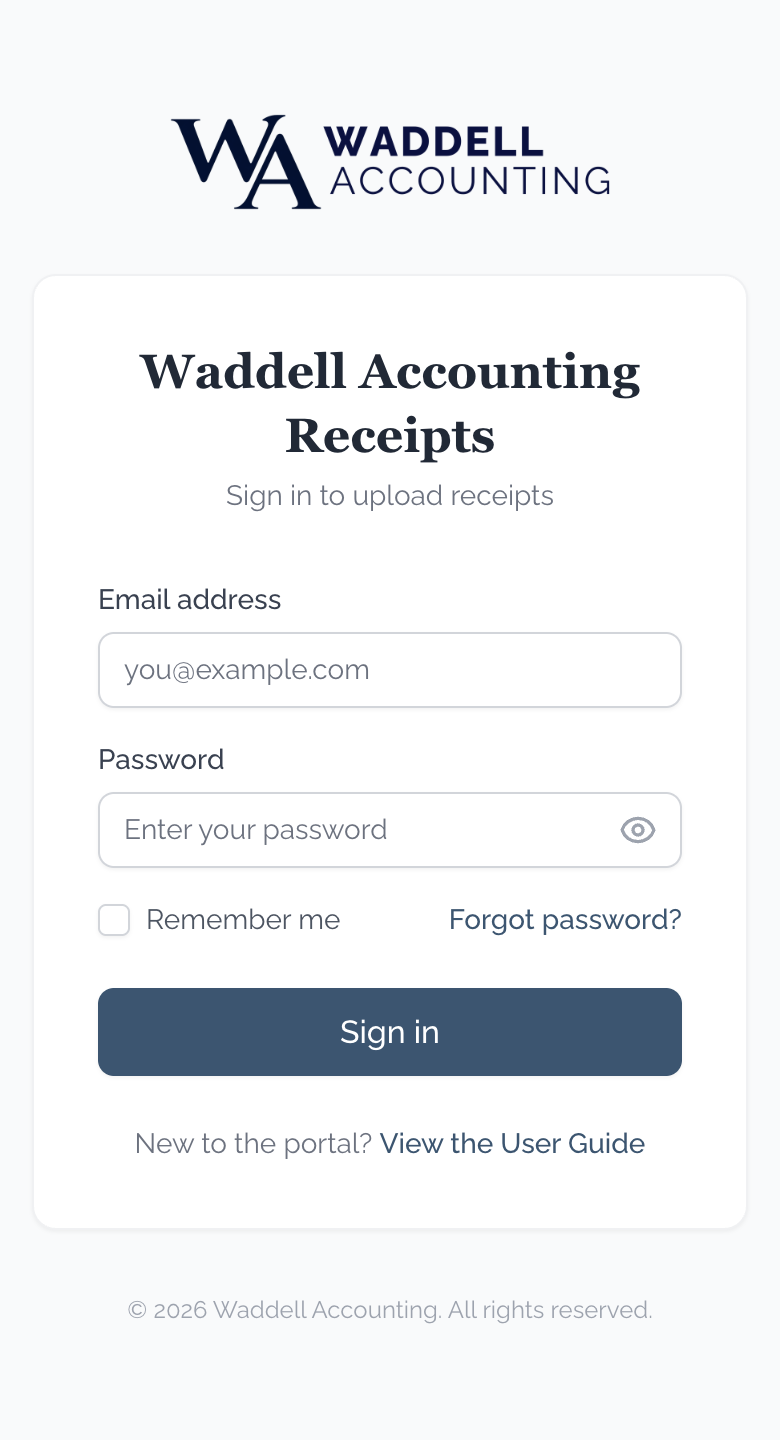
- Open your browser (Safari on iPhone, Chrome on Android).
- Type the portal address into the long box at the top of your screen.
- Tap the "Email" box and type your email address.
- Tap the "Password" box and type your password.
- (Optional) Check "Remember me" if you are using your own personal device.
- You may be asked to check a box to prove you are not a robot. Check the box and follow any instructions if prompted.
- Tap the "Sign in" button.
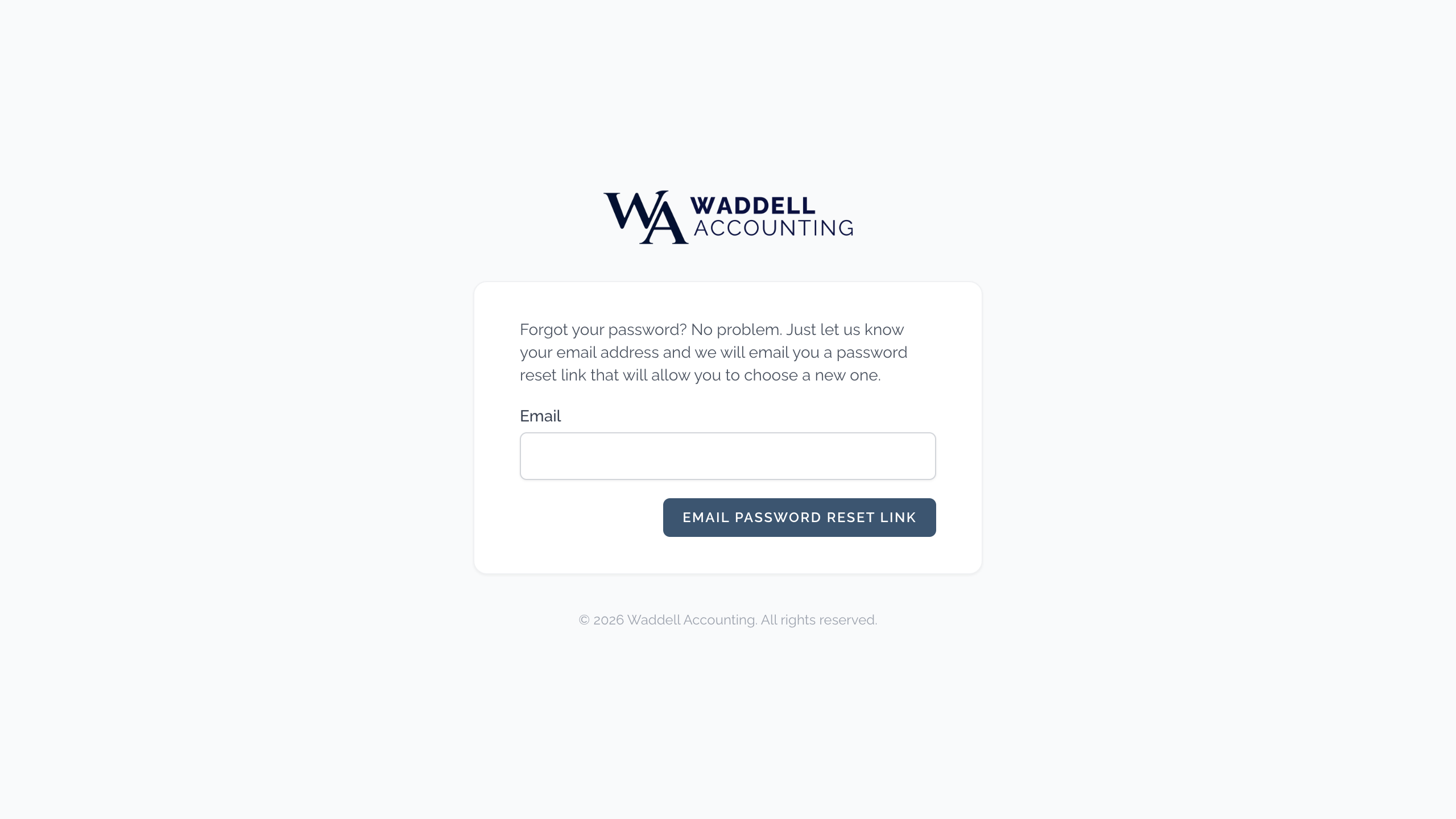
3. Resetting Your Password (If You Forgot It)
- On the login page, click or tap "Forgot password?"
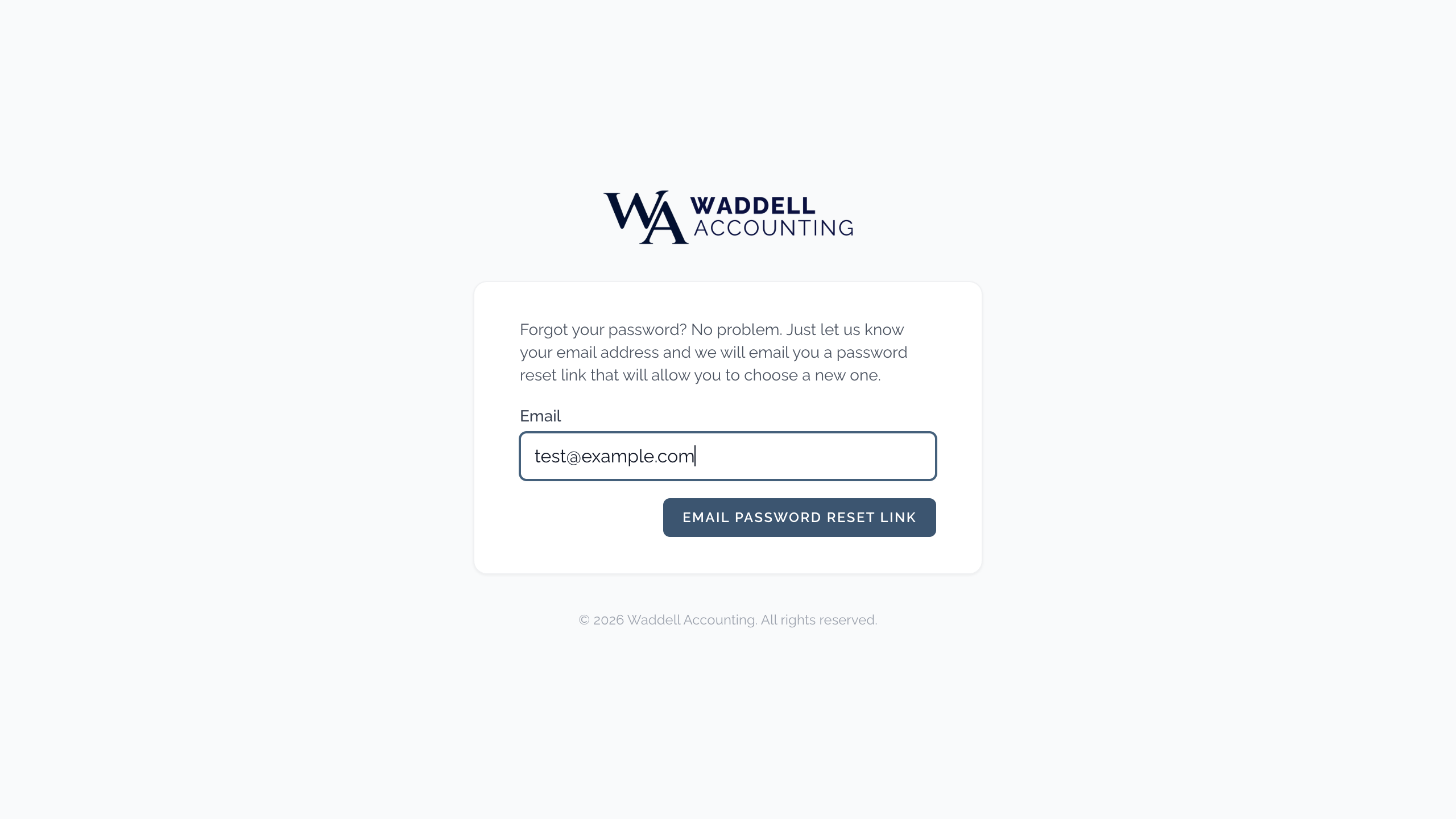
- Type your email address.
- Click or tap "Email Password Reset Link."
- Check your email inbox. The email may take a minute to arrive.
- Open the email and click or tap the reset link inside it.
- Type your new password.
- Type the same new password again to confirm it.
- Click or tap "Reset Password."
- You will be taken back to the login page. Log in with your new password.
4. Sending a Receipt
On a Computer
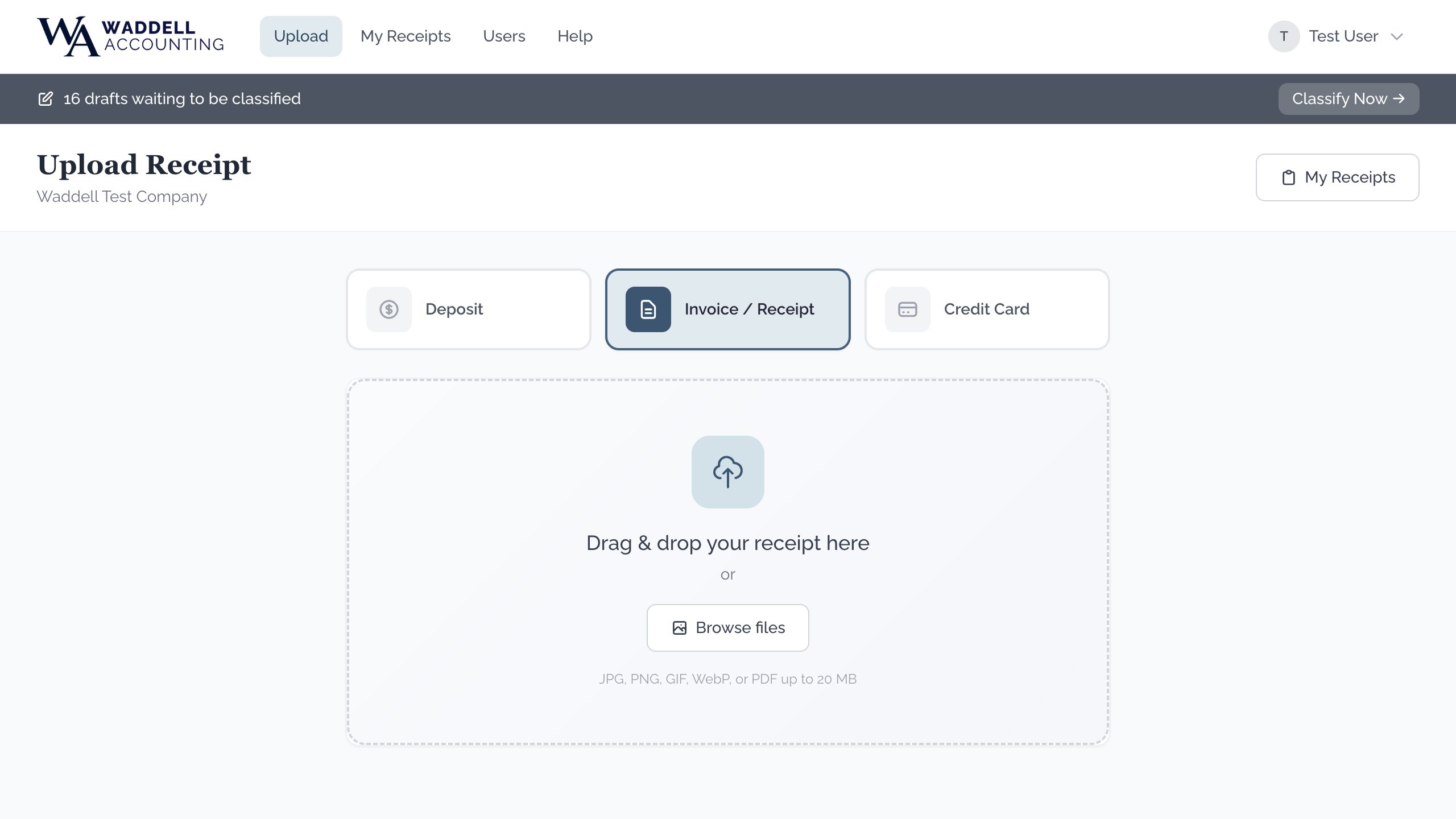
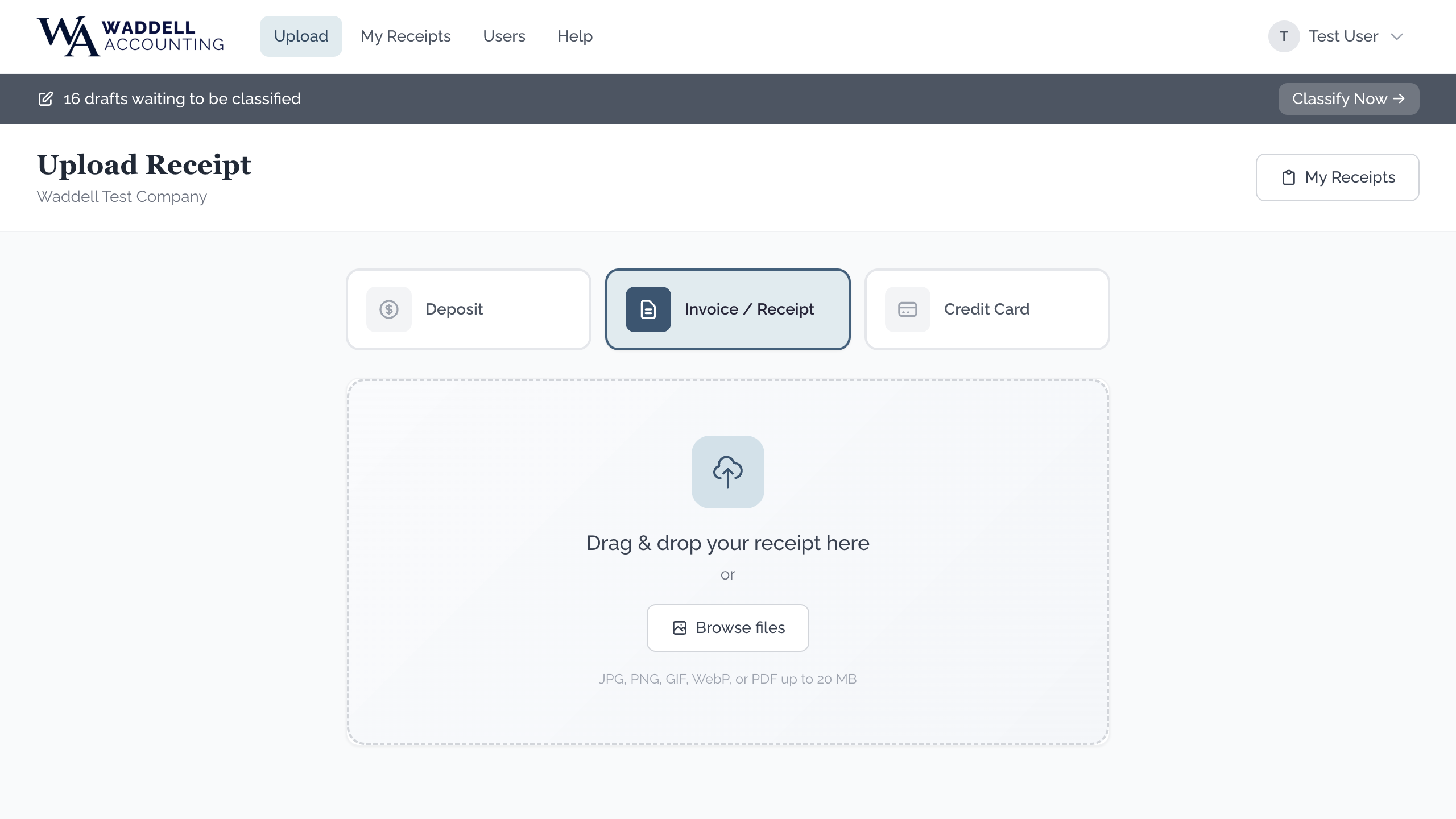
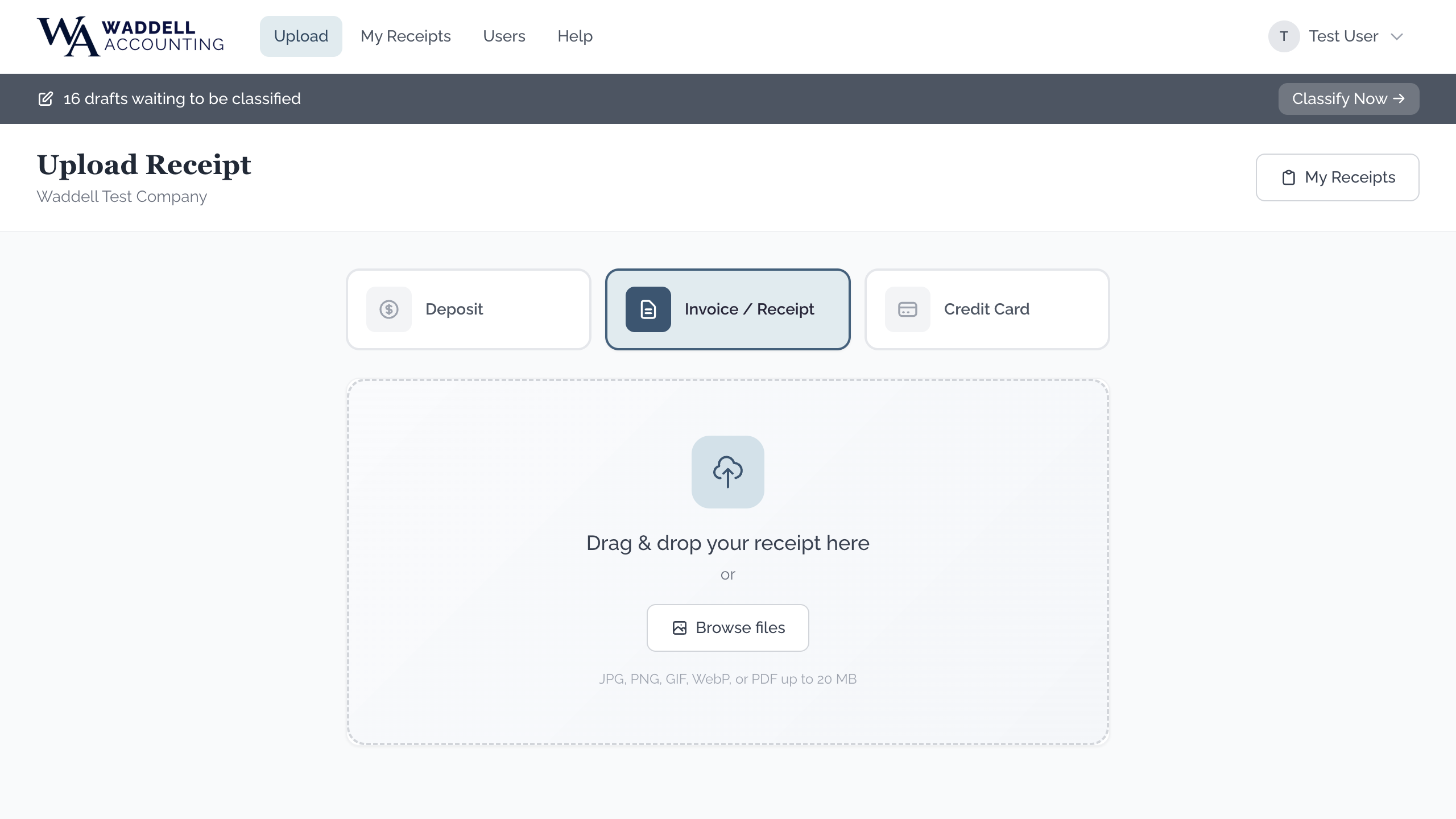
- Click "Upload" in the menu bar at the top of the page.
- Choose the type of receipt by clicking the matching button:
- Deposit — money coming in to the parish
- Invoice / Receipt — money going out (a purchase)
- Credit Card — a credit card charge
- Click "Browse Files" to find the picture or PDF on your computer. You can also drag and drop the file onto the dashed upload area.
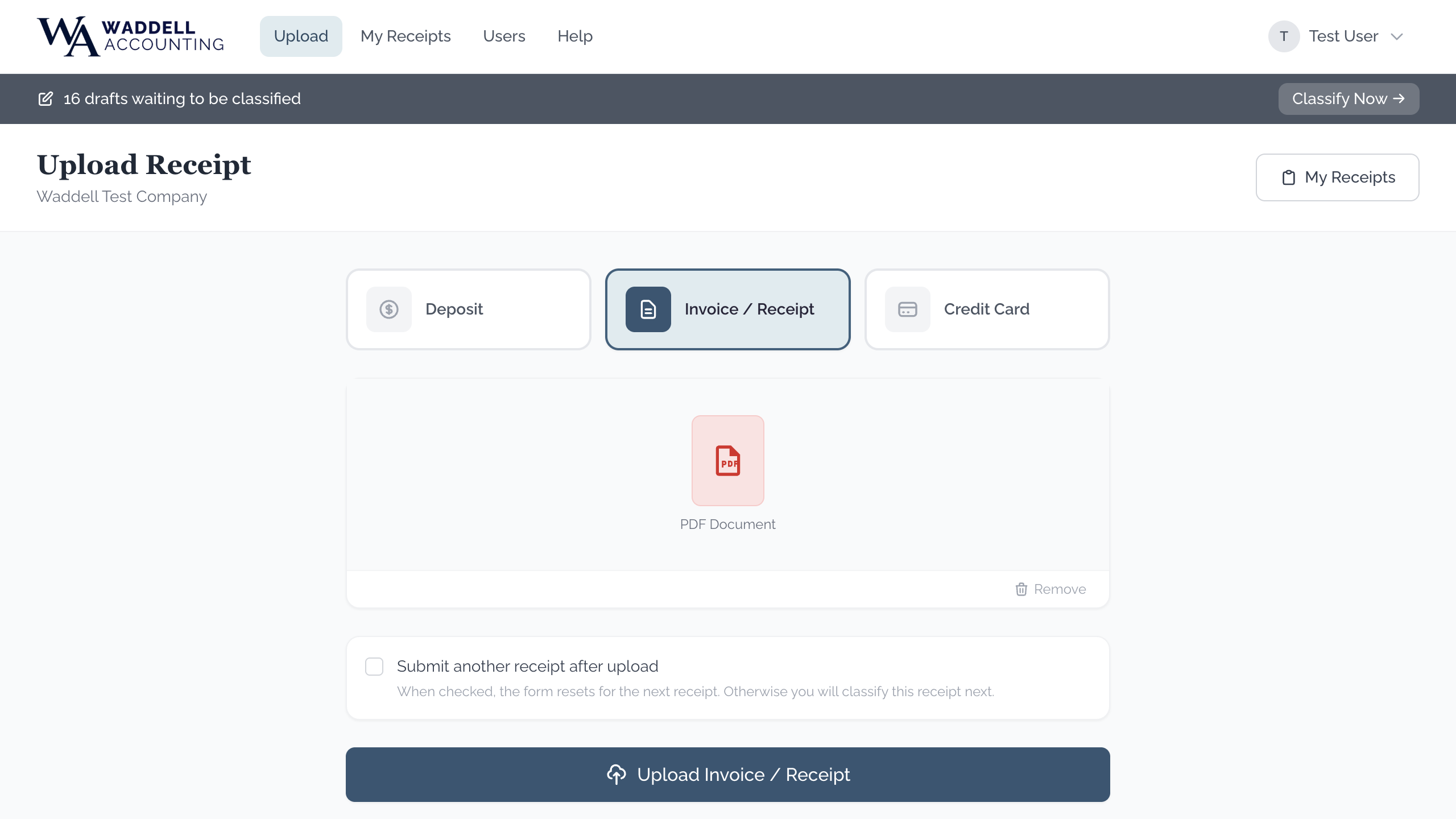
- A small preview of the file will appear. Make sure it is the right one.
- Click the blue upload button at the bottom (it will say something like "Upload Invoice / Receipt"). A progress bar will show how far along the upload is.
- When the file is sent, the page will move you to the Review page automatically. You can add a memo note there. See Section 5 for what to do next.
On a Phone or Tablet
- Tap the menu icon (three lines ☰) in the top corner to open the menu, then tap "Upload."
- Tap the button for the type of receipt: Deposit, Invoice / Receipt, or Credit Card.
- Tap the upload area in the middle of the screen.
- Choose "Take Photo" to take a new photo with your camera, or "Photo Library" to pick an existing photo.
-
If taking a photo: lay the receipt flat on a table or counter. Use good lighting — natural daylight works best. Make sure all the text, especially the total and date, is sharp and readable.
TipAvoid shadows falling across the receipt. A plain background helps the system read it more accurately.
- Tap the blue upload button at the bottom of the screen and wait while the file is sent.
- You will be taken to the Review page where you can add a memo. See Section 5 for what to do next.
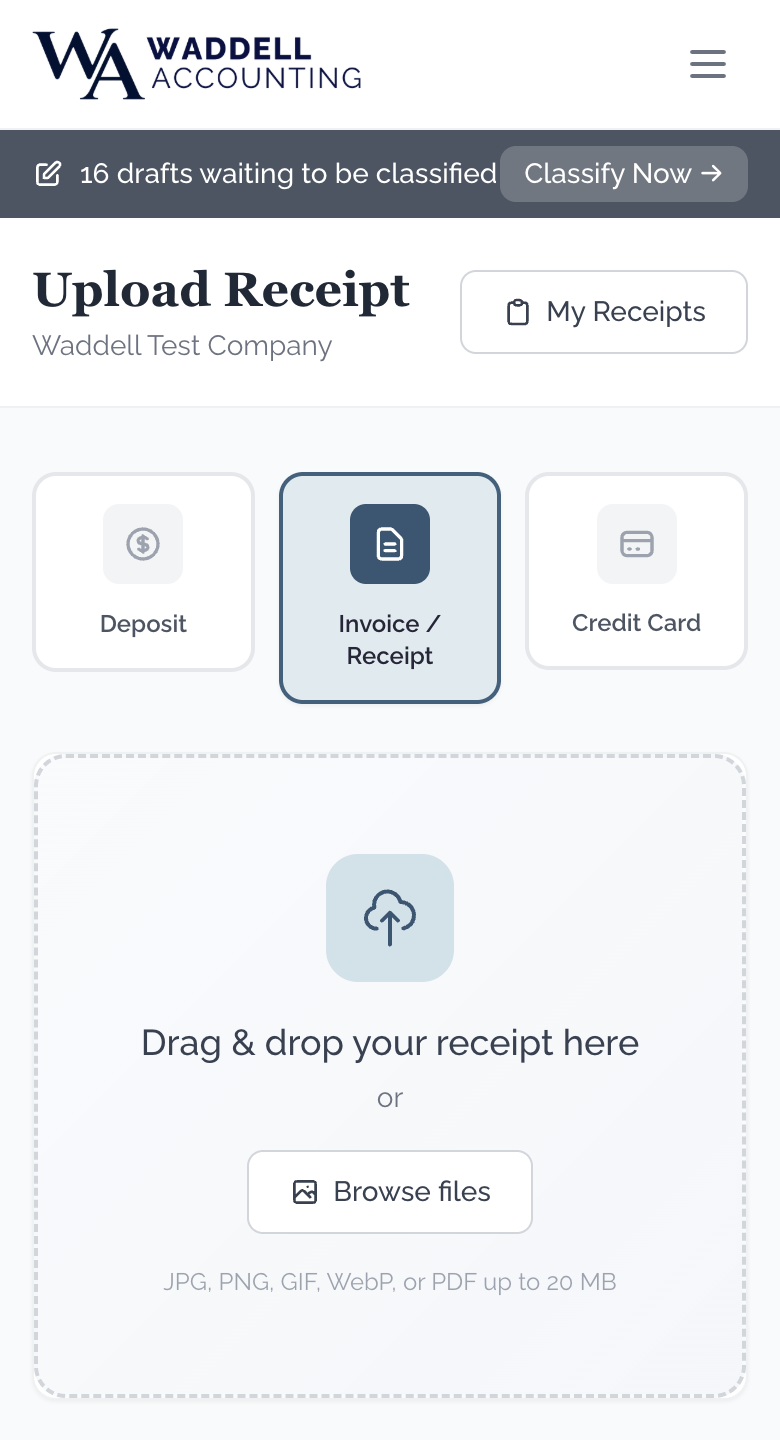
Accepted File Types and Size Limit
- Accepted types: JPEG (.jpg), PNG (.png), GIF (.gif), WebP (.webp), or PDF (.pdf)
- Maximum file size: 20 MB
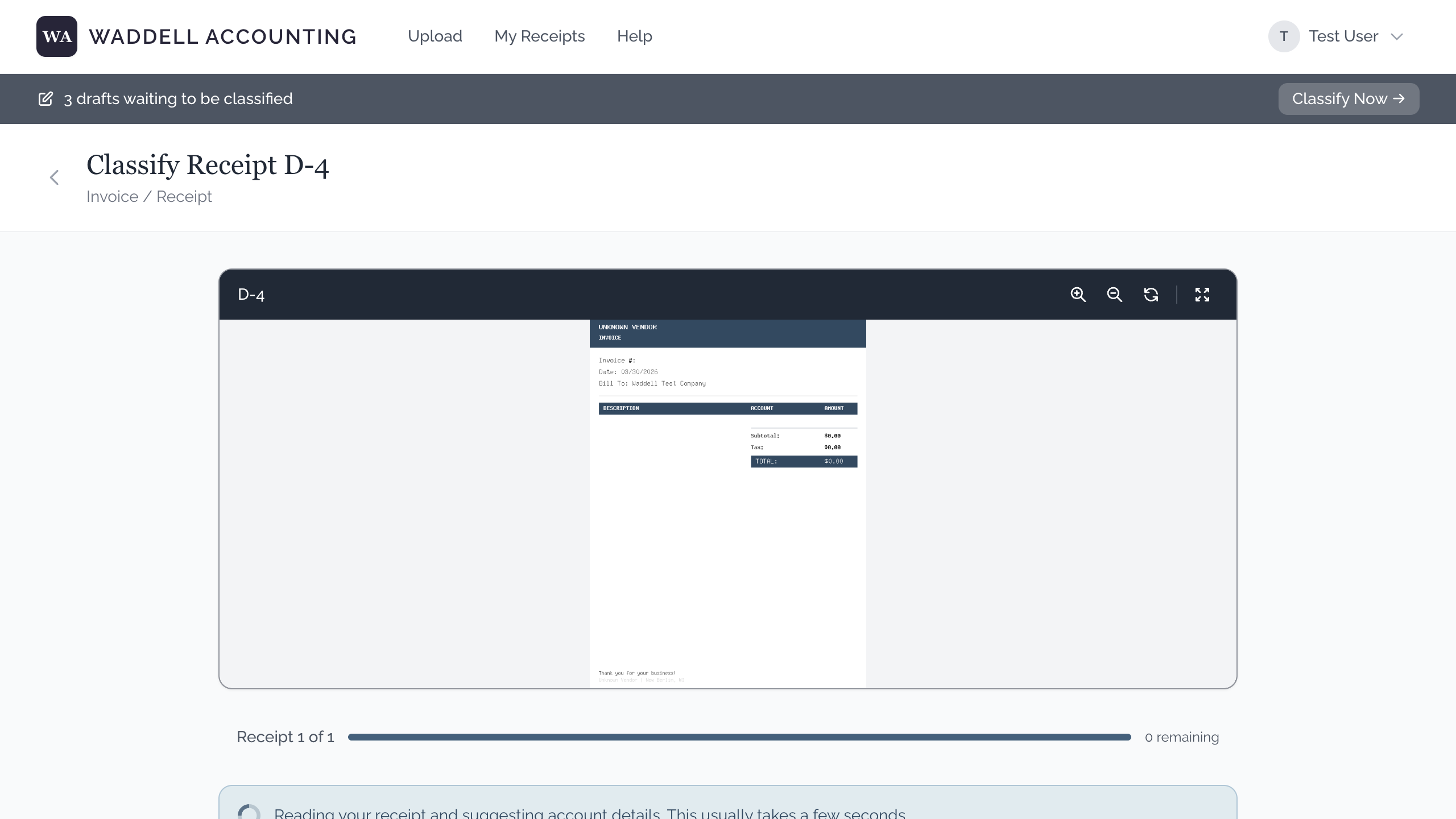
5. Reviewing and Submitting the Receipt
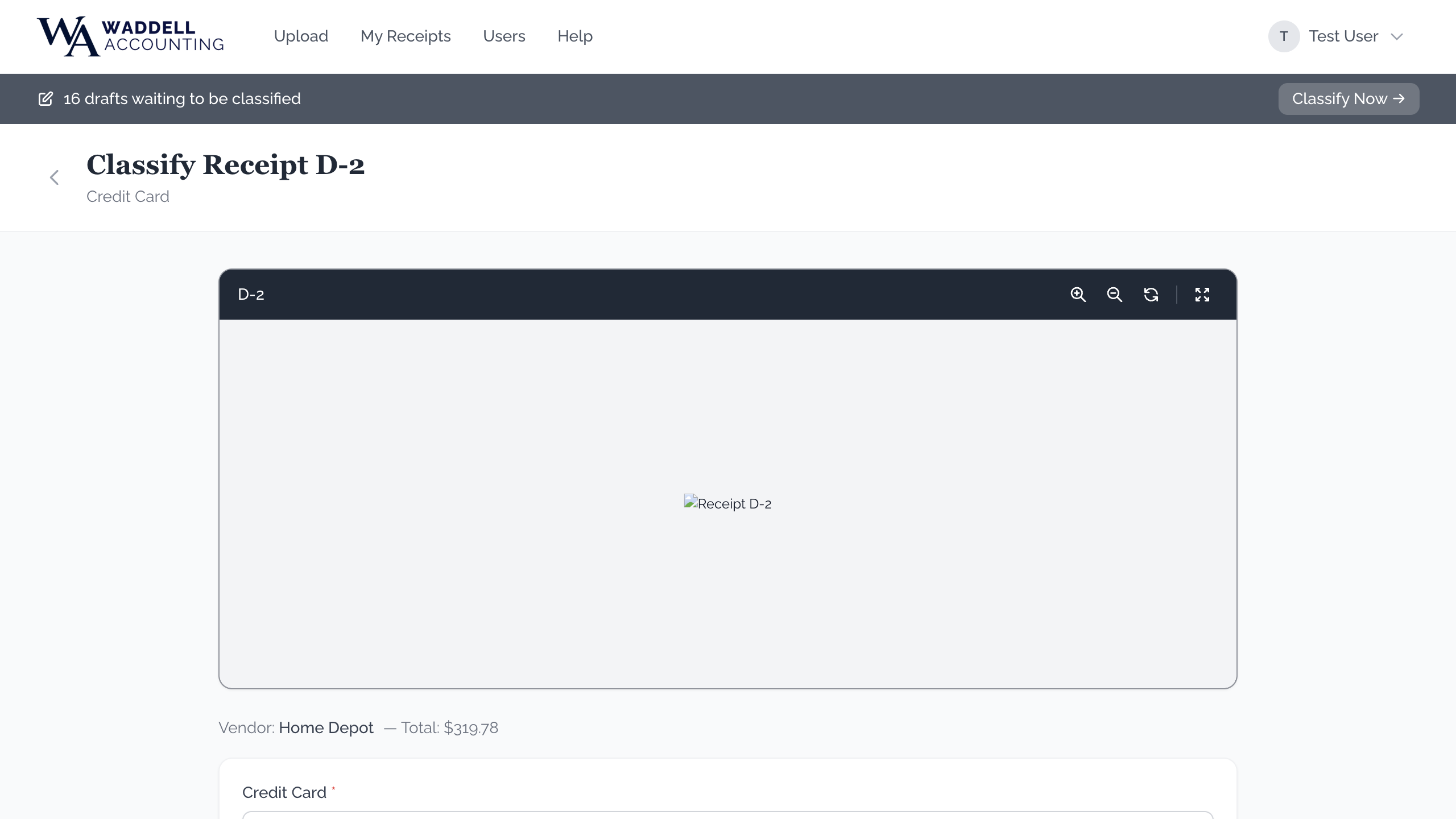
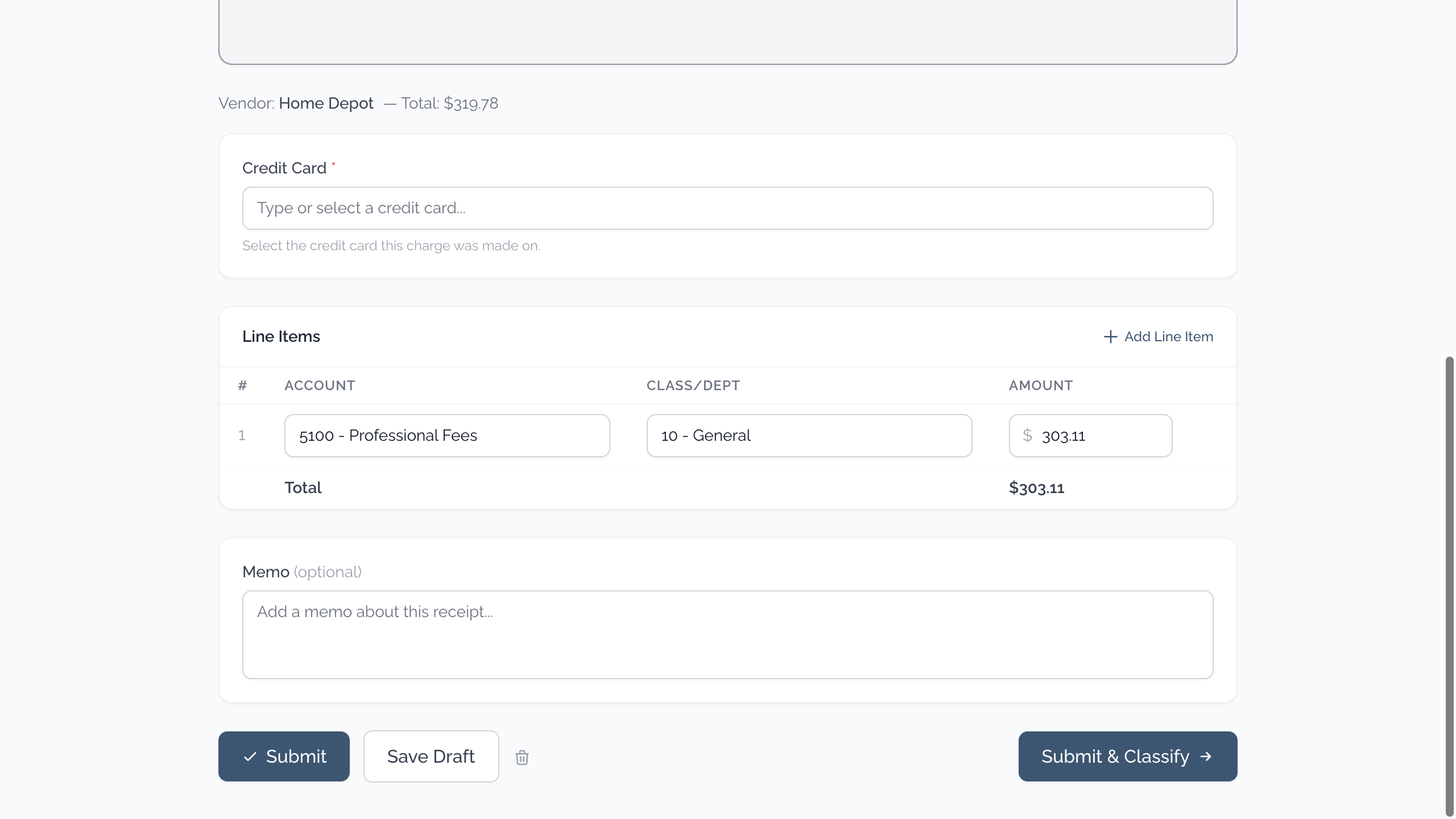
After you send a file, the system automatically reads the receipt and fills in the details for you. All you need to do is look it over and correct anything that looks wrong.
What You Will See on the Review Page
- Vendor name — the store or company. You can click on it to change it if it is wrong.
- Account and Class dropdowns — categories for your accountant. If they are filled in, great. If not, click the dropdown, start typing to search, and press Enter to select the first result. For some accounts the Class box locks and shows "No Class Assignment" — that is normal: those accounts never take a class, so leave it and submit as usual.
- Total and Tax — filled in by the system. Shown for your information — you do not need to change them.
- Memo — you can add or edit a note here for your accountant.
The Buttons at the Bottom
- Submit — sends the receipt to your accountant right away.
- Submit & Classify — sends the receipt and automatically opens the next draft receipt for review. This button only appears when you have more drafts waiting.
- Save Draft — saves your work so you can come back and finish it later. The receipt will show a "Draft" status in your list.
On a Phone or Tablet
The Review page works the same way on a phone or tablet. A few things to keep in mind:
- The receipt image or PDF appears at the top of the page. Scroll down to see the form fields below it.
- When tapping a dropdown (like Account or Class), start typing to narrow the list — this works better than scrolling through all the options on a small screen.
- If the on-screen keyboard covers the Submit button, scroll down or tap somewhere else first to dismiss it.
- You can start reviewing on your phone and finish on a computer (or the other way around) — your work is saved automatically.
6. Sending Several Receipts at Once (Batch Mode)
If you have a stack of receipts to send, Batch Mode lets you send all of them first and then review them one by one. This is very handy when you have several receipts to submit at the end of the month.
How to Start a Batch
- Go to the Upload page as usual.
- Choose your receipt type and select your file.
- Before clicking the upload button, check the small box that says "Take Another."
- Click the upload button to send the first receipt.
- A blue "Batch Mode" bar will appear at the top of the page. This tells you that Batch Mode is on and shows how many receipts you have sent so far.
- The Upload page comes back right away — you do not have to wait. Each receipt keeps sending quietly in the background while you get the next one ready. Keep the "Take Another" box checked for each receipt.
- When you are done, you have two options: uncheck "Take Another" before uploading your last receipt, or click the "Done Uploading" button in the blue Batch Mode bar at the top of the page. Either way, the button waits until every receipt has finished sending — you may briefly see it say something like "Finishing 2 uploads…" — and then the system takes you to review your receipts.
The "Uploads" List
While you are in Batch Mode, a short Uploads list appears on the page with one line for each receipt you have sent. It tells you exactly where each one stands:
- A spinning circle means the receipt is still on its way to us.
- A green checkmark means it arrived safely.
- A red line means it could not be sent. The app quietly tries again a couple of times on its own first; if it still cannot get through, the line turns red with a short explanation.
On a red line you will see two small buttons: Retry sends that receipt again, and Remove takes it off the list if you would rather send it later. "Done Uploading" will ask you to Retry or Remove any red lines before it moves you on to review.
Reviewing Your Batch
After your last file is sent, the system will take you to the Review page for the first receipt. At the top you will see a progress bar that says something like "Receipt 2 of 5."
- Review the details for each receipt and correct anything that looks wrong.
- Click "Submit & Classify" to send it to your accountant and move to the next receipt.
- Repeat until you have reviewed all receipts in your batch.
Batch Mode on a Phone or Tablet
Batch Mode is especially useful on a phone because you can quickly snap photos of several receipts in a row:
- Each time you send a receipt with "Take Another" checked, you will be taken right back to the upload page.
- Tap "Choose File" and select "Take Photo" to use your camera for the next receipt — no need to save photos first.
- When you are done, either uncheck "Take Another" before your last upload, or tap "Done Uploading" in the blue bar at the top.
- The Review page works the same as on a computer. Scroll down to see the form fields below the receipt image.
If You Need to Take a Break
If you need to step away before you have finished reviewing, that is fine. Your receipts are saved.
- When you come back, you will see an amber (golden yellow) bar at the top of the page that says how many receipts are still waiting to be reviewed.
- In your "All Receipts" list, receipts that still need to be reviewed will have a blue dot next to them.
- You can resume from any computer or phone — not just the one you started on.
7. Viewing Your Receipts
On a Computer
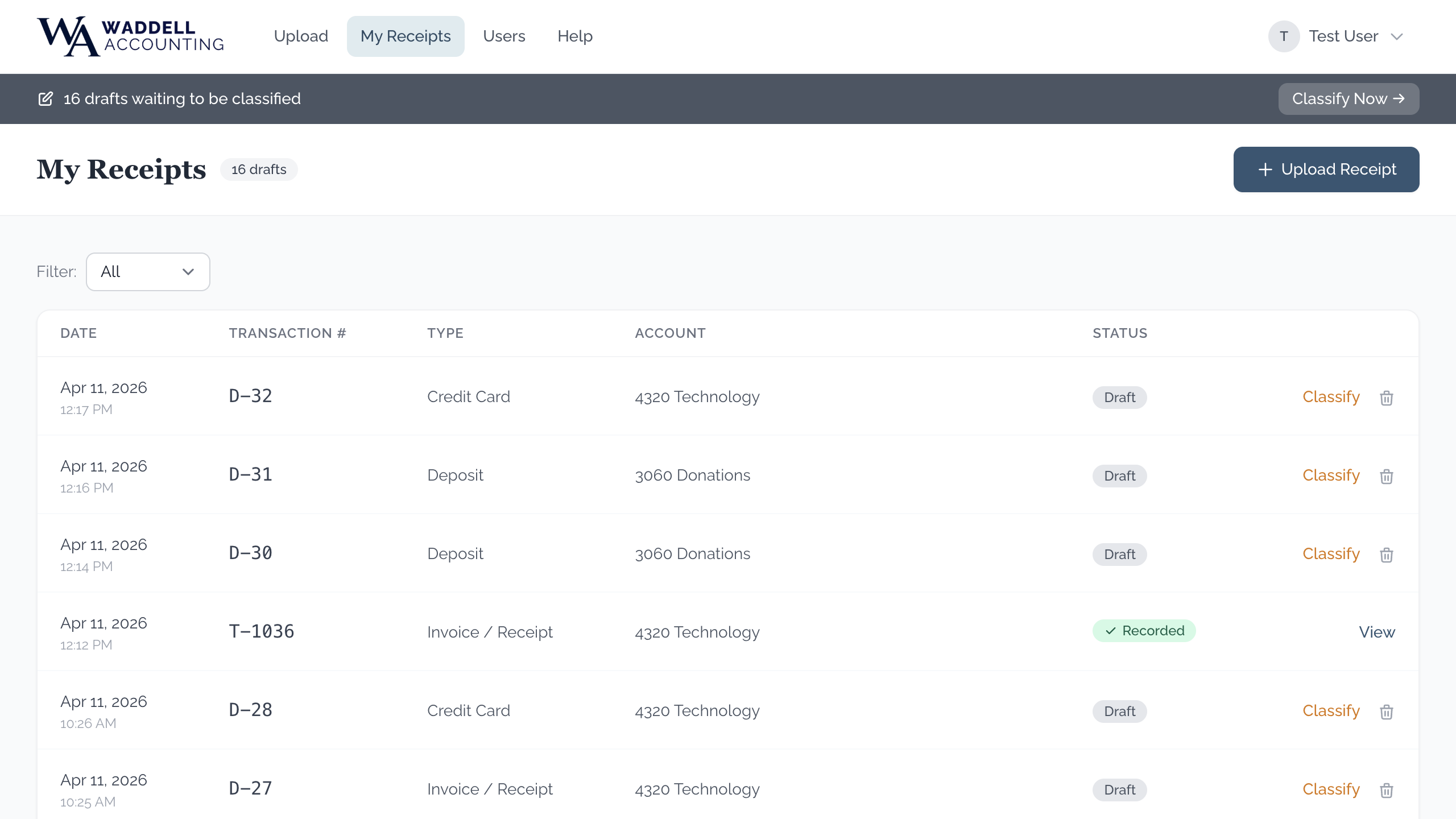
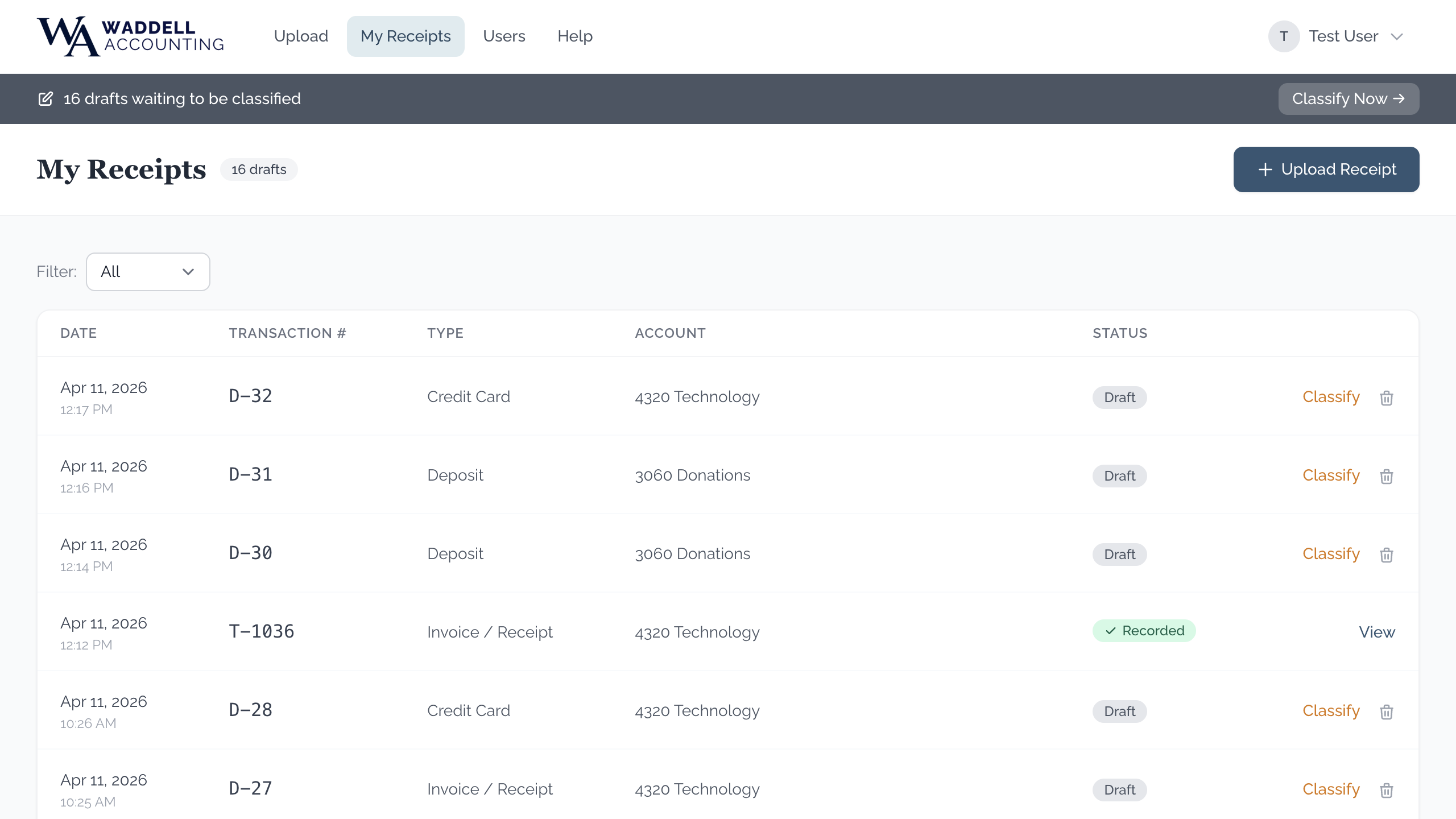
- Click "All Receipts" in the menu at the top of the page.
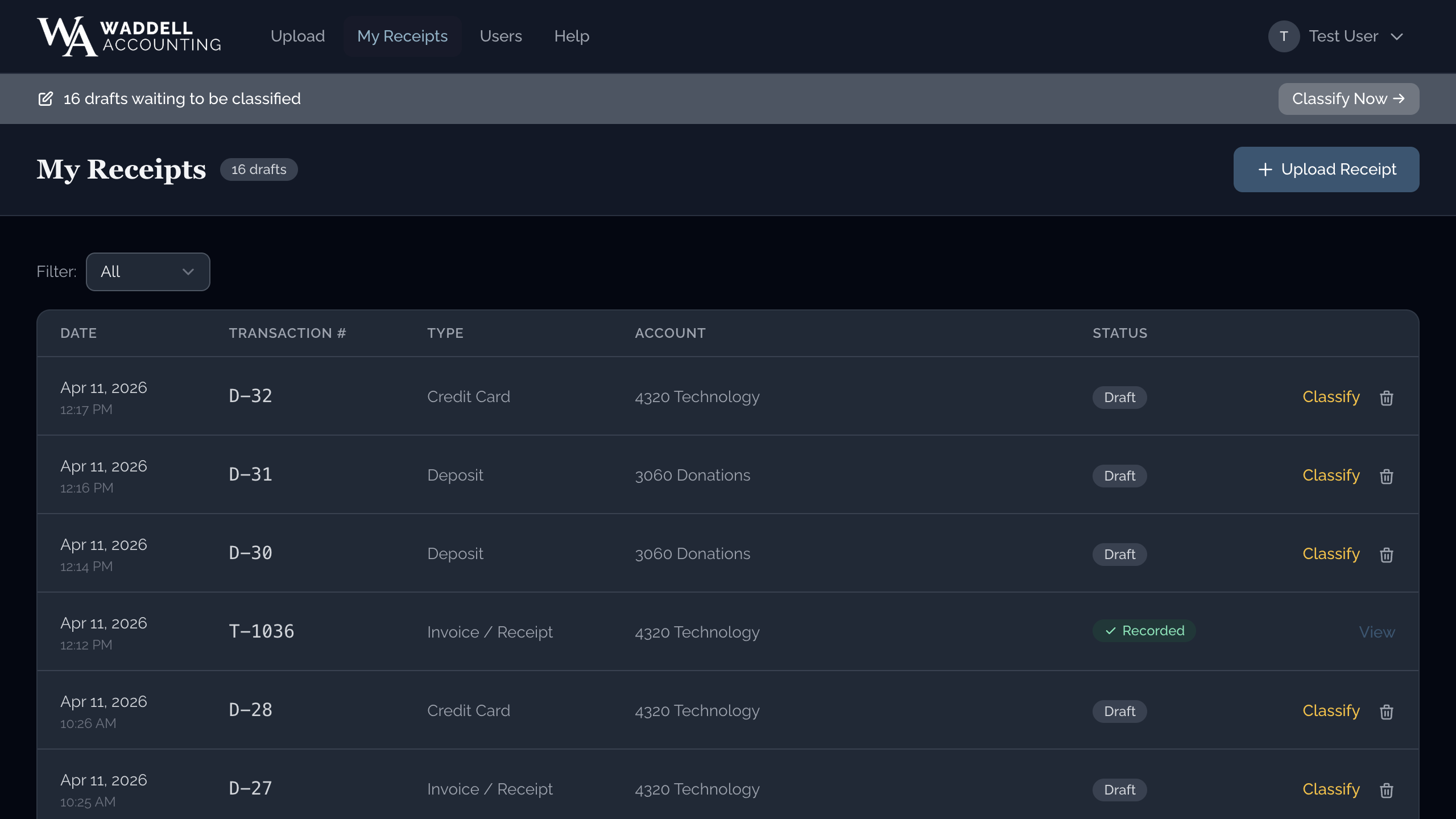
- You will see a list of all your receipts.
- Each row shows the date you sent it, the store name, the type, and the status.
- Use the filter bar at the top to narrow the list by status, type, or date range. Click "Apply" to update it, or "Clear" to see everything again.
- Click "View" on any row to see the full details.
On a Phone or Tablet
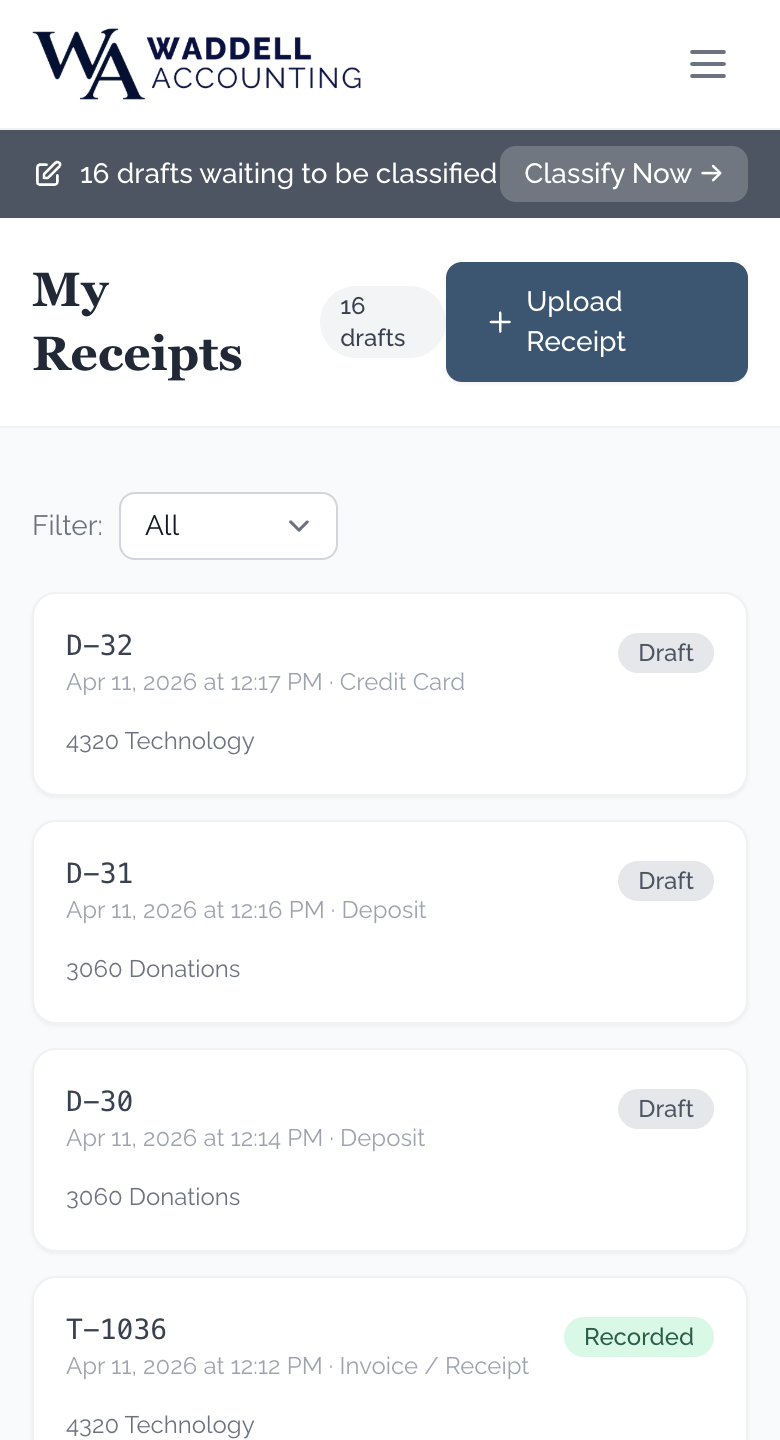
- Tap the menu icon (☰) in the top corner.
- Tap "All Receipts."
- You will see cards for each receipt. Tap any card to see the full details.
Understanding the Status Labels
Each receipt has a colored status label. Here is what each one means:
| Label | What it means |
|---|---|
| Draft | You have sent the picture, but have not yet reviewed and submitted it. Draft receipts are numbered D-1, D-2, etc. You can delete a draft directly if you no longer need it. |
| Pending | You have submitted the receipt and it is waiting for your accountant to record it. Submitted receipts are numbered T-1001, T-1002, etc. If you need to remove a pending receipt, you can request a deletion and your accountant will approve it. |
| Recorded | Your accountant has reviewed and recorded this receipt in QuickBooks. No further action is needed from you. |
| Flagged | Your accountant has a question about this receipt. Contact your accountant to find out what they need. |
| Deleted | This receipt has been deleted. It stays visible in your list (shown in grey) so you have a record that it existed, but it will not be recorded by your accountant. |
8. Viewing Receipt Details
- From "All Receipts," click or tap a receipt to view its details.
- You will see a picture of the receipt (or a link to view the PDF if you uploaded a PDF).
- For pictures: click or tap the image to make it larger. Click or tap again to go back to normal size.
- For PDFs: click or tap "Open PDF" to view the file in a new window.
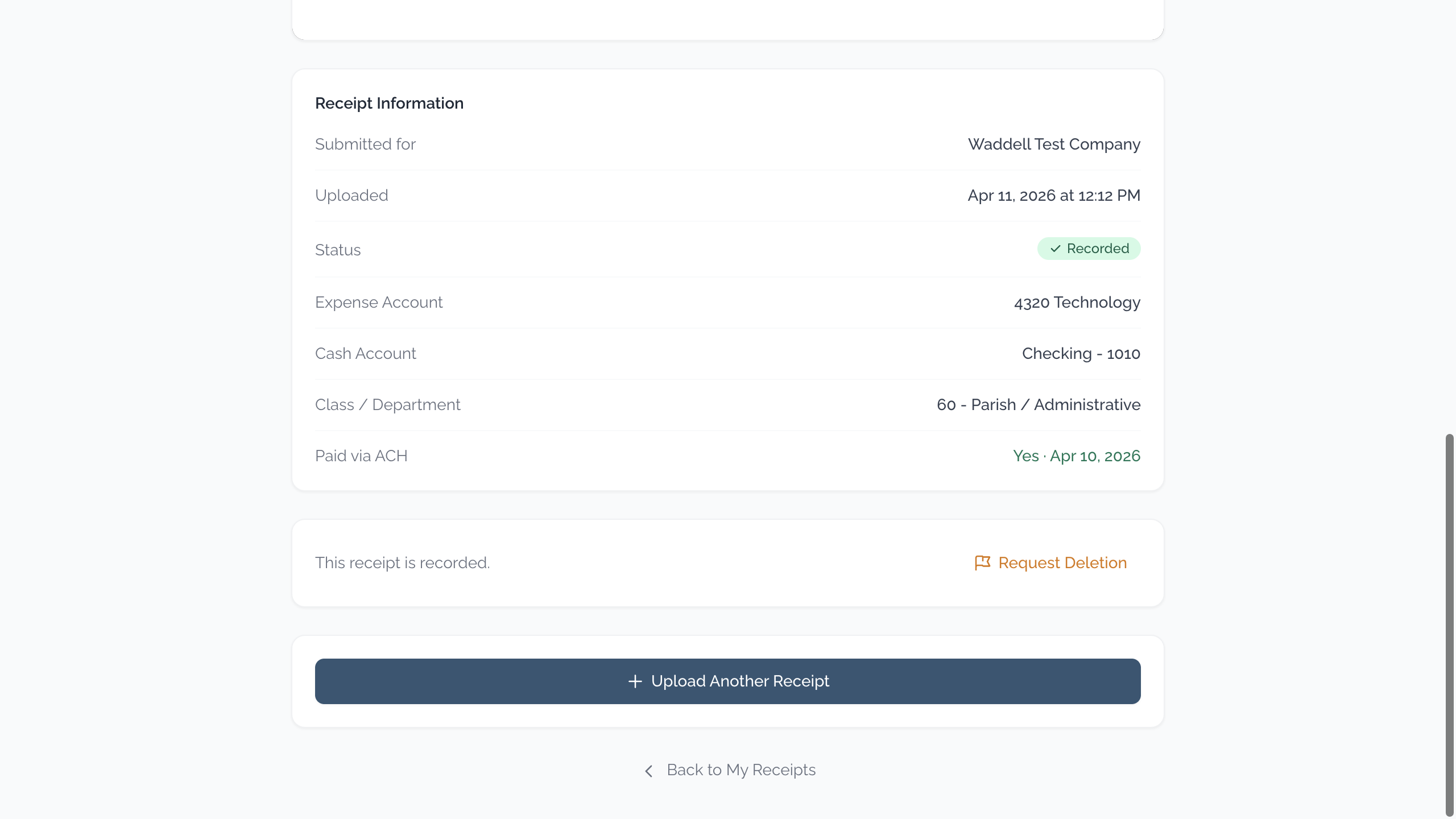
- Below the image you will see the transaction number, type, status, and any other details the system read from your receipt.
Upload Another Receipt
At the bottom of the receipt detail page, you will find an "Upload Another Receipt" button. Click it to go straight back to the upload form without navigating through the menu.
On a Phone or Tablet
On a smaller screen, the page is stacked vertically — the receipt image at the top and the details below.
- For images, tap the image to see a larger version. Use pinch-to-zoom if you need to read small text on the receipt.
- For PDFs, tap "Open PDF" to view the file in your browser or PDF reader.
- Scroll down to see the transaction number, type, status, and other details.
Deleting a Draft Receipt
If a receipt shows a status of Draft (numbered D-1, D-2, etc.) and you want to remove it:
- Open the receipt detail page.
- Click or tap the "Delete" button.
- A warning will appear asking you to confirm. Click or tap "Confirm" to delete it.
Requesting Deletion of a Submitted Receipt
If a receipt shows a status of Pending (numbered T-1001, T-1002, etc.) and you need to remove it:
- Open the receipt detail page.
- Click or tap "Request Deletion."
- Your accountant will review and approve the deletion request.
9. Changing Your Password
- Click or tap your name in the top corner of the screen.
- Click or tap "Profile."
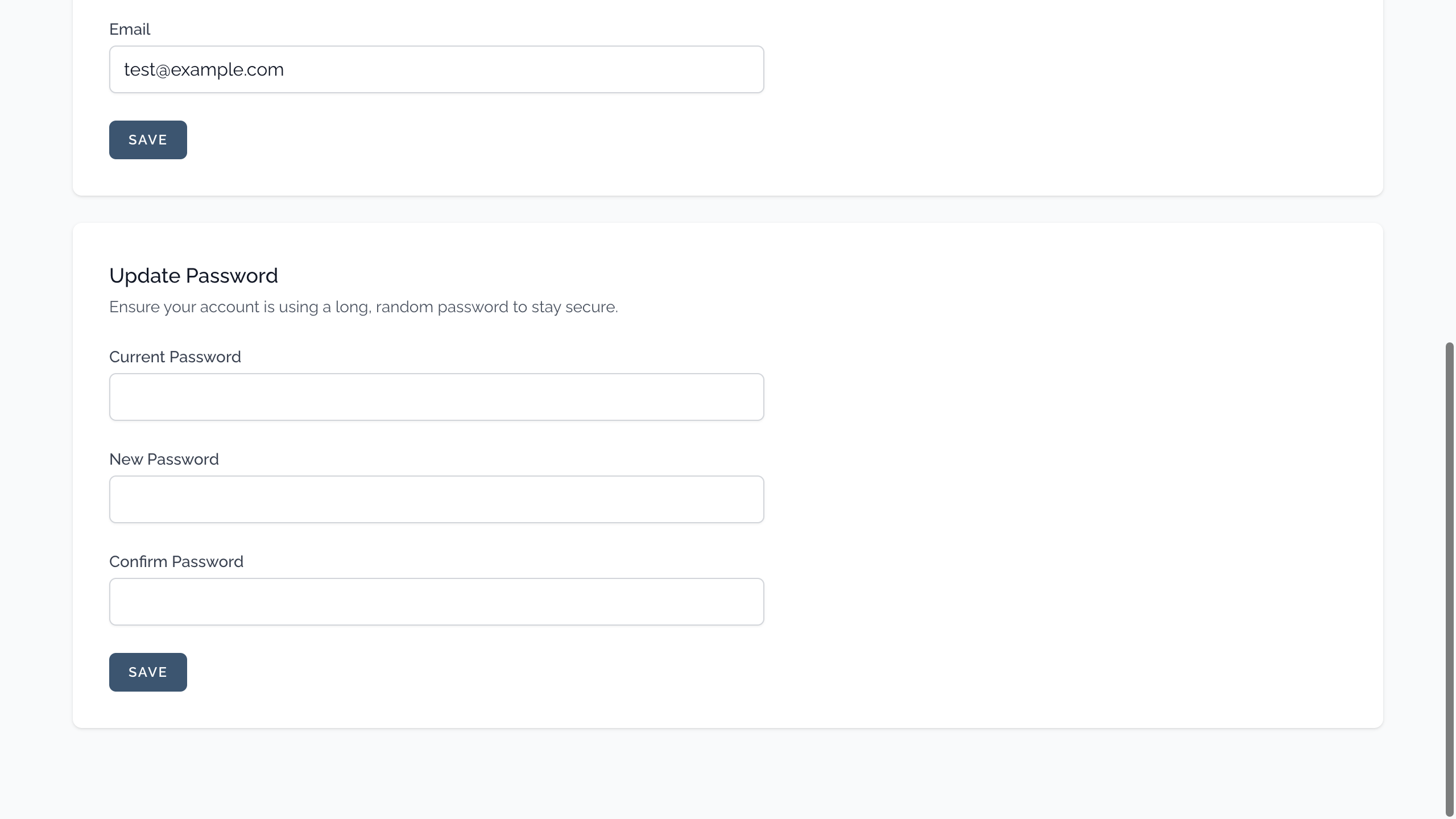
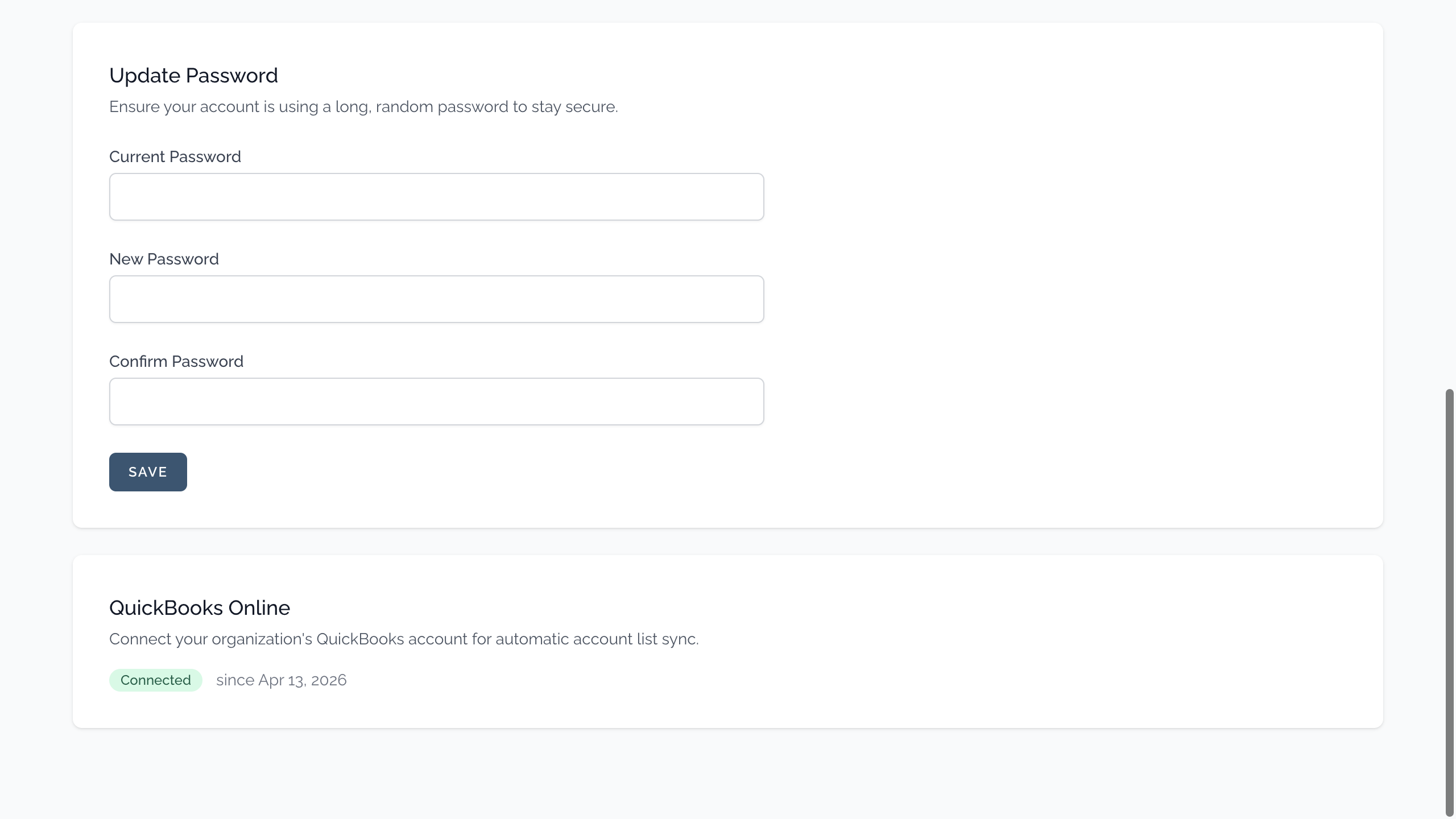
- Scroll down to the "Update Password" section.
- Type your current password.
- Type your new password.
- Type the new password again to confirm it.
- Click or tap "Save."
- You will see a message confirming that your password has been updated.
10. Updating Your Name or Email
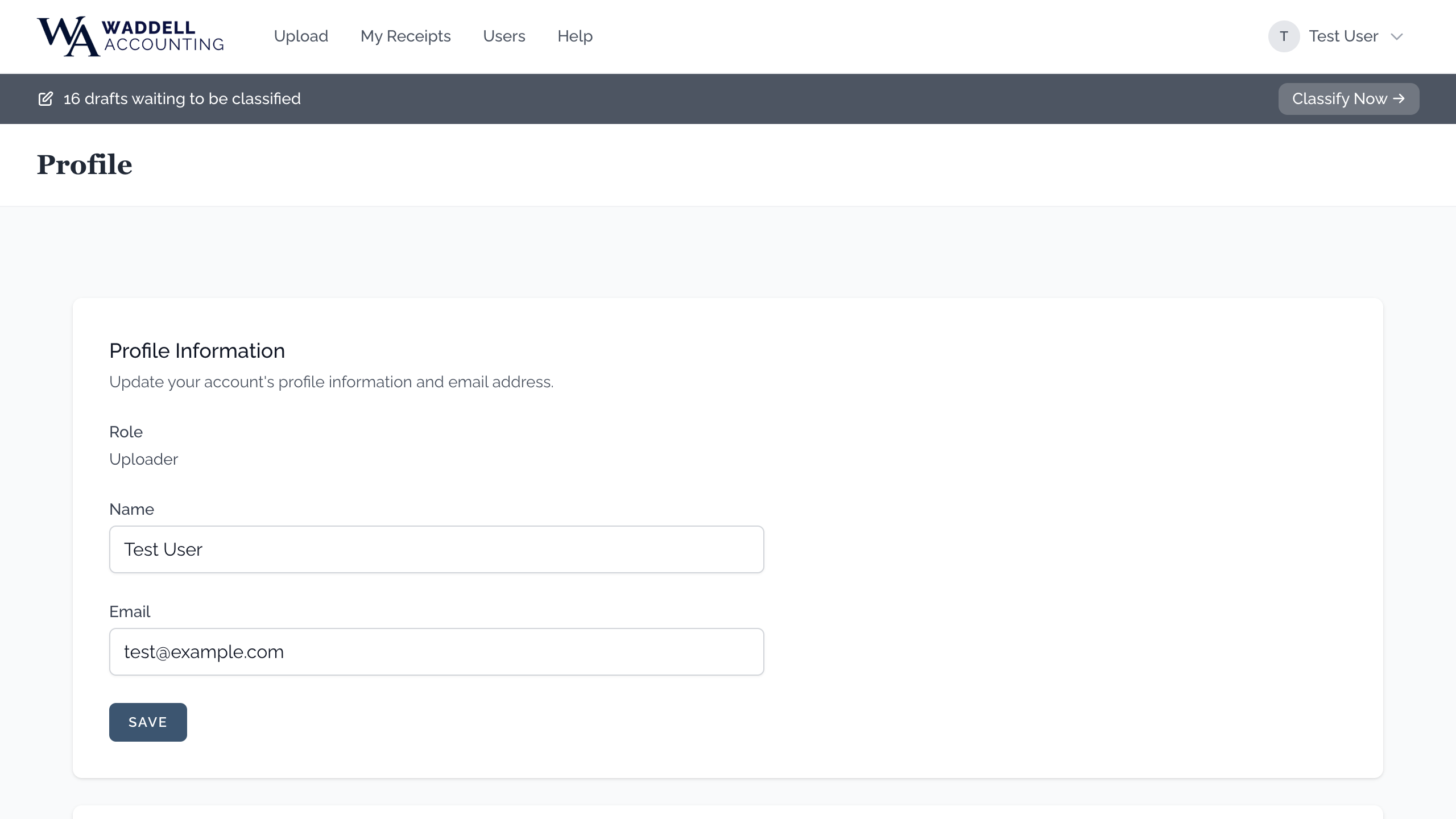
- Click or tap your name in the top corner of the screen.
- Click or tap "Profile."
- Change your name or email address as needed.
- Click or tap "Save."
- If you changed your email address, check your inbox for a verification email and follow the instructions in it.
11. Logging Out
On a Computer
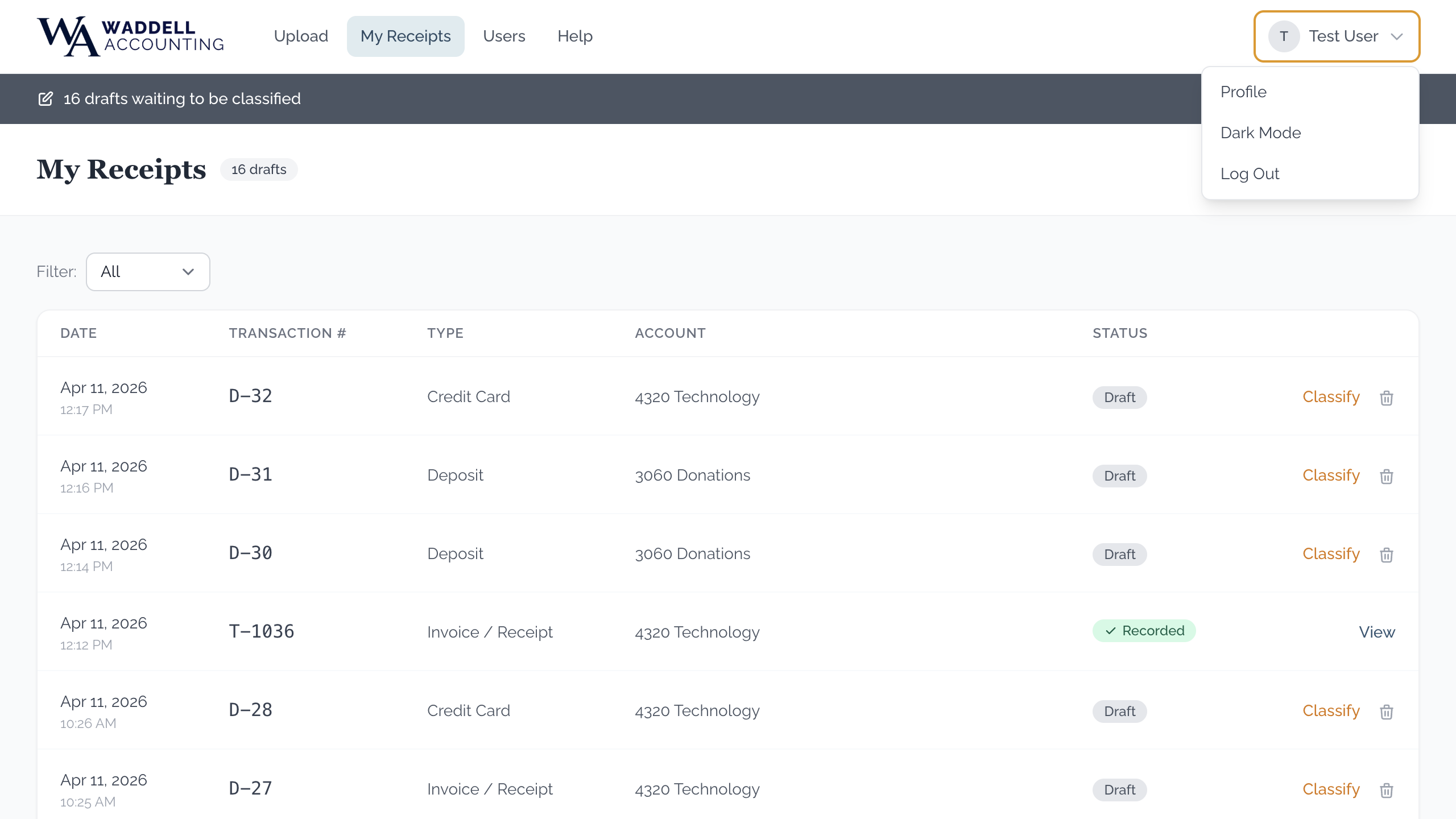
Click your name in the top corner of the screen, then click "Log Out."
On a Phone or Tablet
Tap the menu icon (☰), scroll down to the bottom of the menu, then tap "Log Out."
12. Using Dark Mode
Dark mode changes the screen to use a dark background with light text. Some people find this easier on the eyes, especially in a dim room or at night.
On a Computer
Click your name in the top corner of the screen, then click "Dark Mode" to turn it on, or "Light Mode" to switch back.
On a Phone or Tablet
Tap the menu icon (☰), scroll down, then tap "Dark Mode" or "Light Mode."
13. Reviewing Check Runs (Signers & Trustees)
A check run is a batch of invoices that your accountant has grouped together for payment — either by check or by electronic bank transfer (ACH). At the end of each payment cycle, the check run is closed and becomes available for you to review.
This section is for users with a Signer or Trustee role. Regular uploaders do not see Check Runs in their menu.
How to Find Check Runs
On a Computer
- Log in to the portal. You will be taken to the signer portal automatically.
- In the navigation bar at the top, click Check Runs.
On a Phone or Tablet
- Tap the menu icon (☰) in the top corner to open the menu.
- Tap Check Runs.
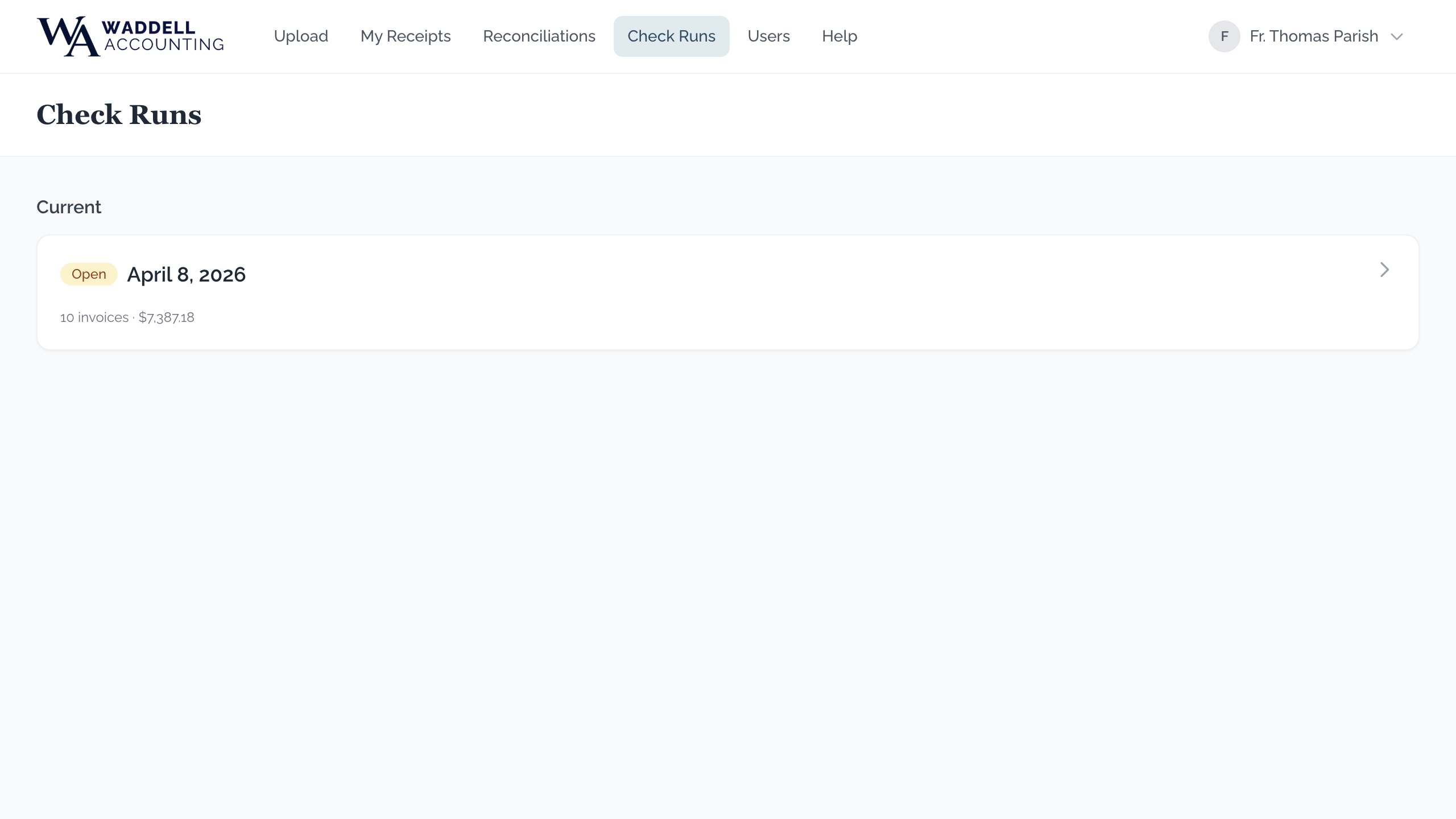
Reading the Check Runs List
The Check Runs page shows all closed check runs organized by fiscal year. The most recent fiscal year is expanded at the top. Older fiscal years are collapsed — click or tap the row to expand them.
Each check run card shows:
- The run name (for example, "April 1 – April 15, 2026")
- The date range of invoices included
- How many invoices are in the run and the total dollar amount
Opening a Check Run
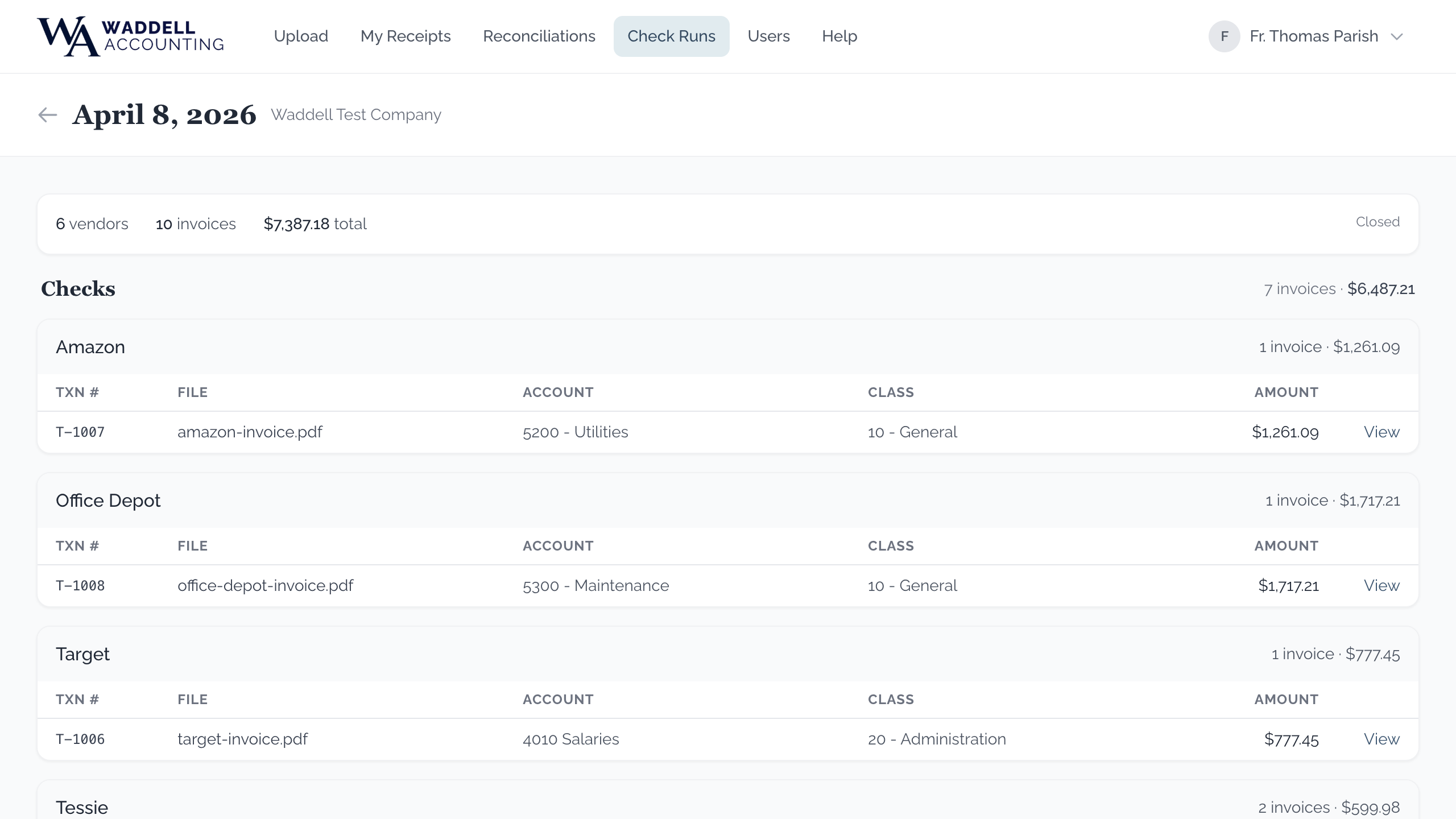
- Click or tap a check run card to open it.
- At the top you will see a summary: the number of vendors, the number of invoices, and the grand total.
- Below the summary, the run is split into two sections:
- Checks — invoices paid by paper check, grouped by vendor. Each vendor group shows a subtotal.
- ACH Payments — invoices paid by electronic transfer, listed individually (not grouped by vendor).
Viewing an Invoice
Each row in the check run table has a View link on the right. Click or tap it to open the original invoice or receipt in a new browser window (the file opens in OneDrive). This lets you verify the document matches the line item.
14. Bank Reconciliations (Signers & Trustees)
Each month, your accountant prepares a bank reconciliation for each of your organization's bank accounts. The reconciliation compares the parish checkbook to the bank statement and confirms everything matches. You are asked to review and approve (sign off on) each reconciliation.
This section is for users with a Signer or Trustee role. Regular uploaders do not see Reconciliations in their menu.
How to Find Reconciliations
On a Computer
- In the navigation bar at the top, click Reconciliations.
On a Phone or Tablet
- Tap the menu icon (☰) and then tap Reconciliations.
Active vs. Archived Months
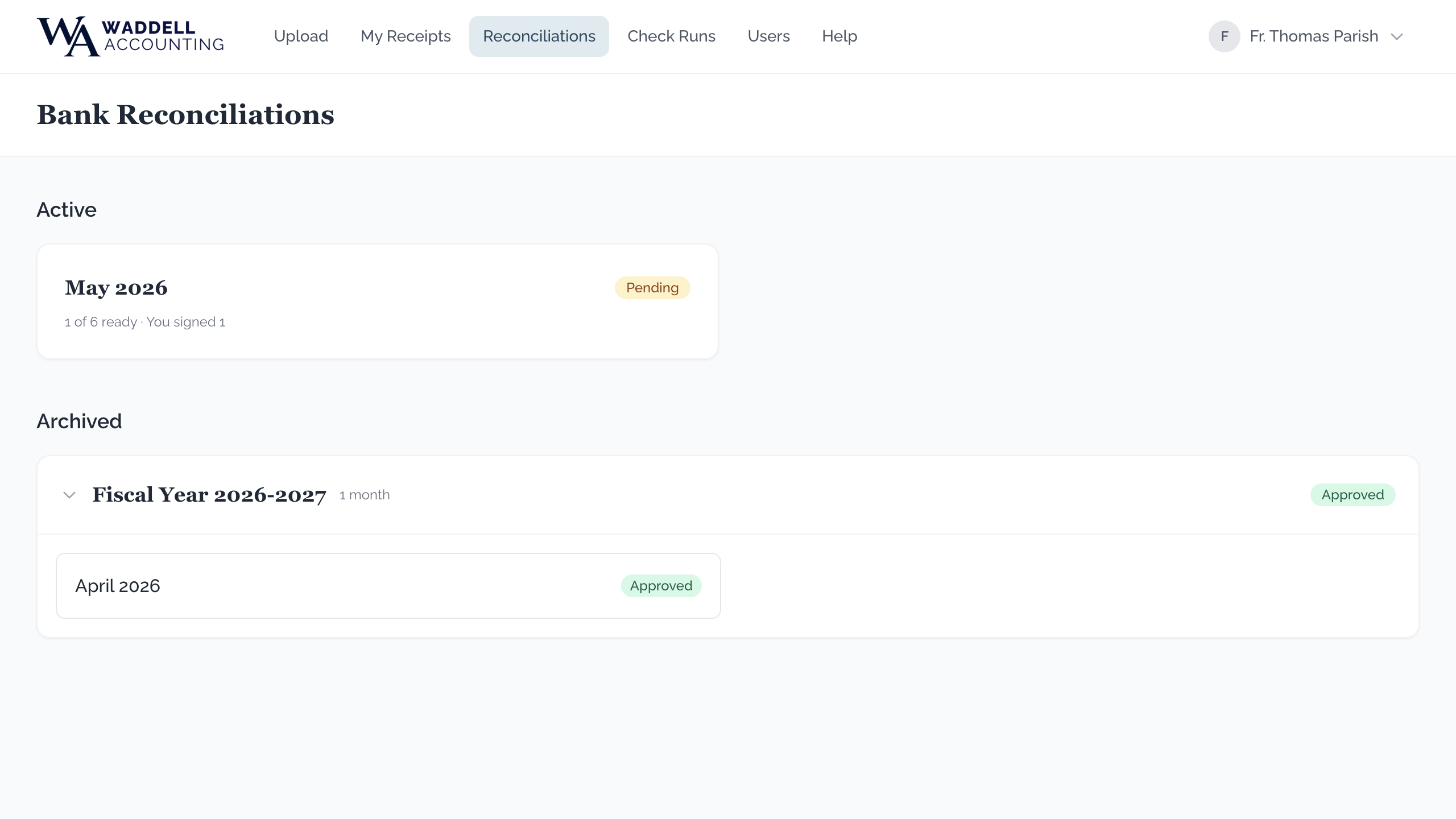
The Reconciliations page has two sections:
- Active — months that are waiting for your review or signature. These appear as cards at the top of the page.
- Archived — months where both parties have already signed. These are grouped by fiscal year and collapsed to keep the page tidy.
Each active month card shows how many accounts are ready to review and how many you have already signed.
Opening a Month
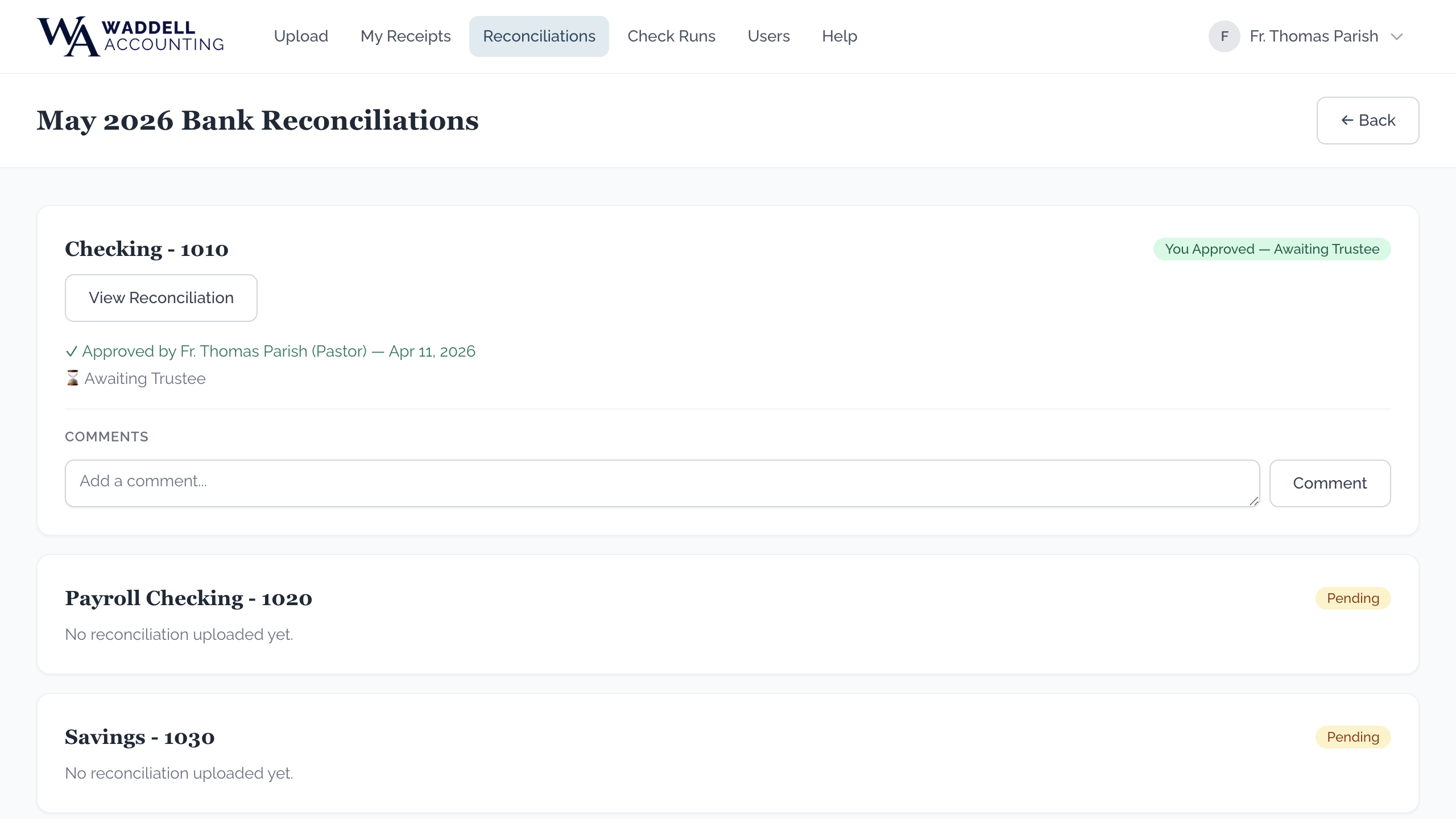
Click or tap any month card to open it. You will see one card for each of your organization's bank accounts. Each card shows:
- The account name
- A colored status badge (Pending, Ready for Review, or Approved)
- Who has already signed, and who is still waiting
Viewing a Reconciliation PDF
- Open the month you want to review.
- On the account card, click or tap the "View Reconciliation" button. The PDF will open in a new browser window or tab.
- Review the reconciliation carefully. When you are ready to approve it, come back to this tab and click the "Sign as [Your Name]" button.
Signing (Approving) a Reconciliation
- After reviewing the PDF, click or tap the "Sign as [Your Name]" button on the account card.
- A confirmation box will appear, showing your name, the account name, and the month you are approving.
- Click or tap "Confirm Approval" to record your signature.
The reconciliation is fully approved when both the Signer and the Trustee (or Cosigner) have signed. Once both parties sign, the month moves to the Archived section.
Adding Comments
Each account card includes a Comments section where you can leave notes for your accountant or the other signer. This is useful if you have a question about a specific account before you sign.
- Scroll down to the Comments section on the account card.
- Click or tap the comment box and type your note.
- Click or tap the "Comment" button to post it.
Editing and Deleting Comments
You can edit or delete your own comments as long as the reconciliation has not been fully approved by both parties yet.
- To edit: click the "Edit" link under your comment, make your changes, and click "Save."
- To delete: click the "Delete" link under your comment and confirm the deletion.
15. Payment Methods (Check and ACH)
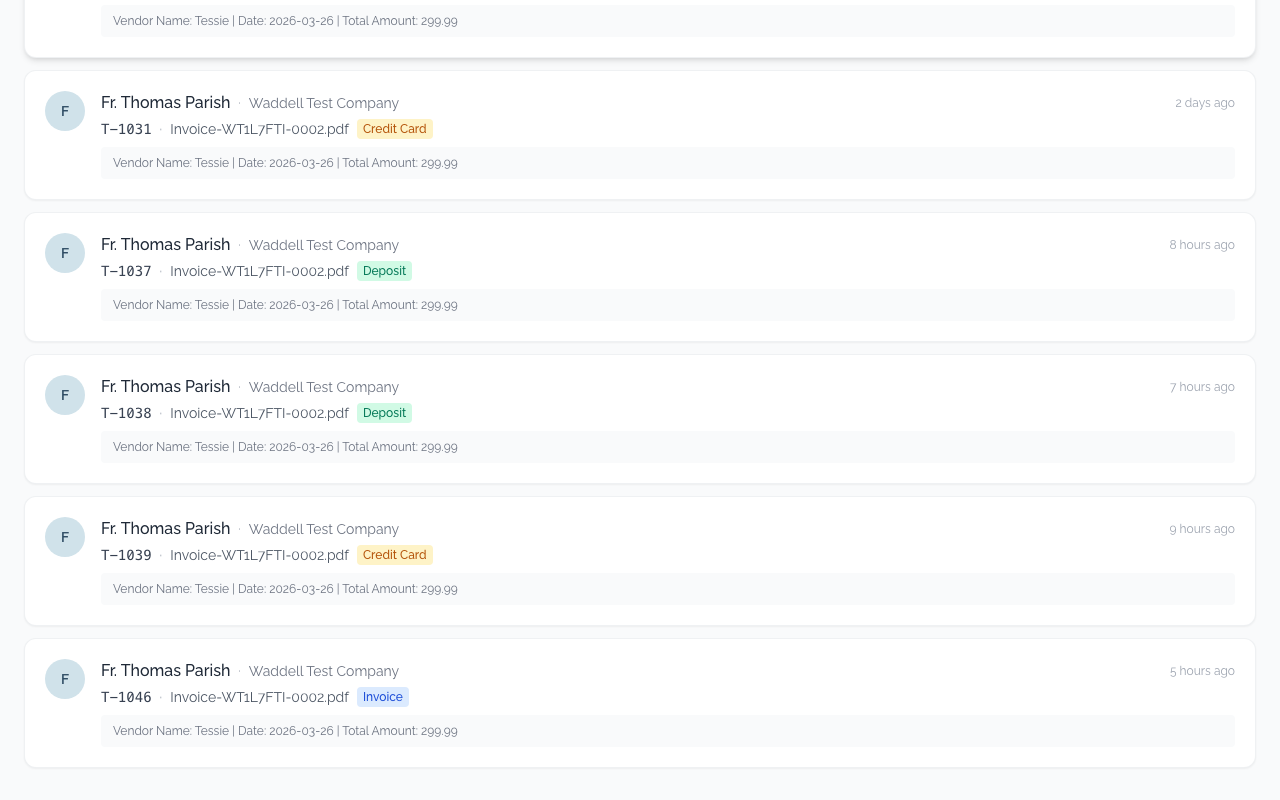
When you are reviewing an Invoice / Receipt on the classify page, you will see a Payment Method section. This tells your accountant how the invoice was or will be paid. There are two options: Check (default) and ACH.
Choosing a Payment Method
The Payment Method radio buttons appear just below the "Pay From Account" field when you are classifying an invoice. Select whichever method applies:
Paid via Check (Default)
This is the default option. Select "Paid via Check" when the invoice will be or was paid by mailing or handing over a paper check. No additional information is needed.
Paid via ACH
Select "Paid via ACH" when the payment goes out electronically. When you select ACH, a Payment date field will appear to the right. You must enter the date the payment was (or will be) sent. This date is used to match the transaction to your bank statement.
Credit Card Charges (Separate Upload Type)
If you are uploading a receipt for a credit card charge, use the Credit Card upload type on the Upload page instead of "Invoice / Receipt."
On the classify page for a Credit Card upload, you will see a Credit Card dropdown (instead of "Pay From Account"). Select the credit card the charge was made on, then fill in the rest of the details as usual.
- Use Invoice / Receipt when you receive a bill that gets paid later (by check, ACH, or credit).
- Use Credit Card when a parish credit card was swiped or used online for a purchase — the charge appears directly on a credit card statement.
On a Phone or Tablet
The Payment Method radio buttons appear in the same place on a phone as on a computer — just below the Pay From Account field. Scroll down if you do not see them right away. Tap a radio button to select it. When you select ACH, the date field will appear — tap it to open your phone's date picker.
16. Connecting QuickBooks (Organization Owners)
This section applies only to the organization owner (the person with the Signer role who manages the parish's QuickBooks Online account). Regular uploaders and Trustees do not need to do anything here.
Connecting QuickBooks Online allows your accountant to import your chart of accounts and department classes automatically, so you do not need to type them in by hand.
The First-Time Setup Page
If your organization is brand new to the portal, when you log in you may see a Welcome page instead of the usual portal. This page prompts you to connect your QuickBooks account.
- If you see a "Connect to QuickBooks" button, click it and follow the steps below.
- If you see a message that says "Your accountant needs to configure your QuickBooks connection first," your accountant has not yet set up the connection on their end. Check back in a day or two after letting your accountant know you are ready.
- If you are a Trustee or Cosigner (not the primary owner), you will see a message that says "Your portal is still being set up." This is normal — only the primary owner connects QuickBooks. You do not need to do anything.
Connecting Your QuickBooks Account
- Click or tap the "Connect to QuickBooks" button. You will be taken to the Intuit (QuickBooks) website.
- Sign in to QuickBooks Online with your email address and password. Make sure you sign in to the correct company if you manage more than one QuickBooks account.
- QuickBooks will ask you to confirm that you are allowing the portal to access your account information. Click "Connect."
- You will be brought back to the portal automatically. A "Thank you for linking your QuickBooks" message will appear to confirm that the connection was successful.
After Connecting — The Thank You Page
Once connected, the setup page changes to show a confirmation message: "Thank you for linking your QuickBooks — we will have your new experience configured soon!" It also shows when the connection was made.
Reconnecting from Your Profile Page
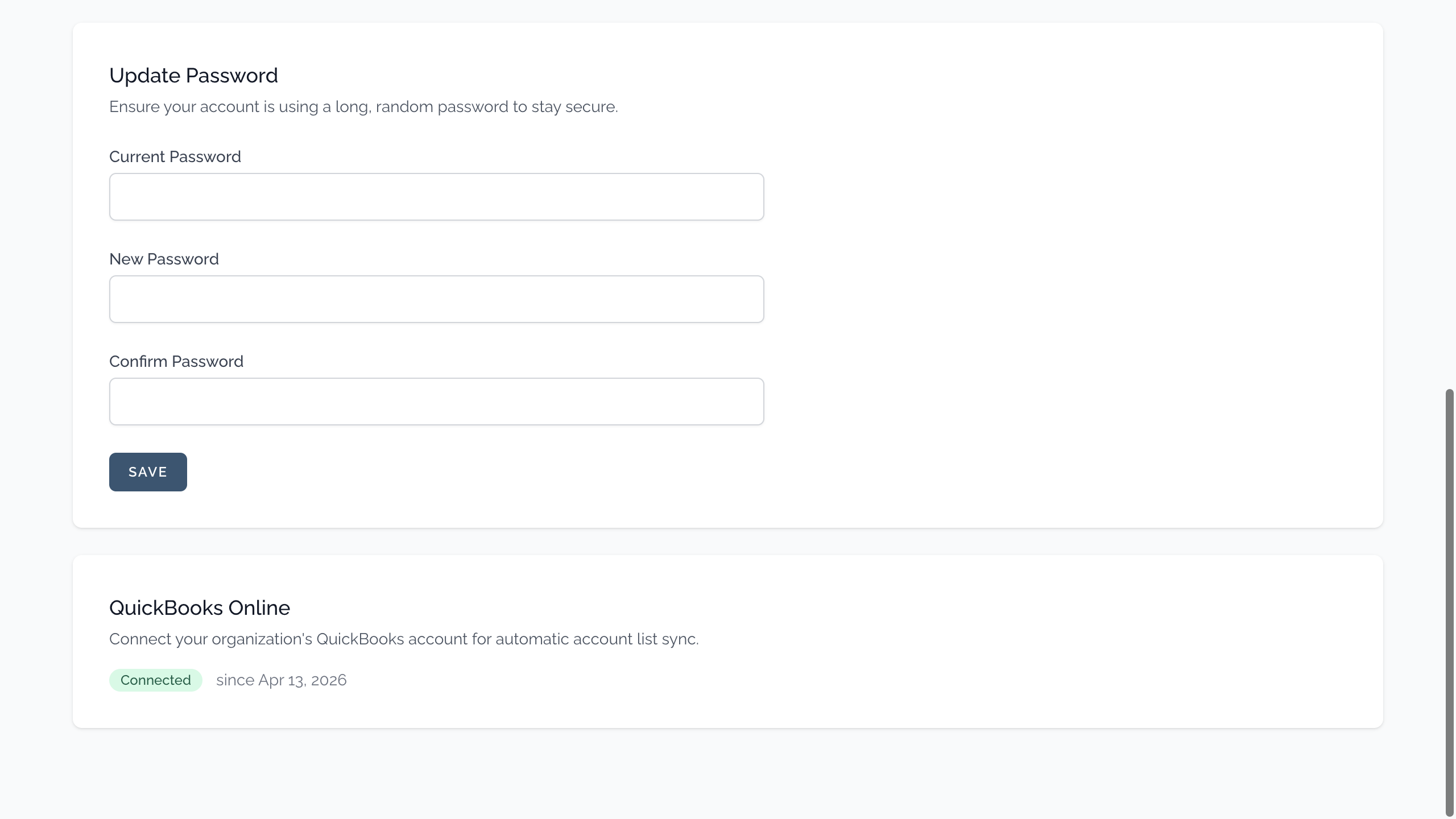
If your QuickBooks connection ever needs to be refreshed (for example, after a password change), you can reconnect it directly from your Profile page — you do not need to wait for the setup screen again.
- Click or tap your name in the top corner of the screen and select "Profile."
- Scroll down to the "QuickBooks Online" section.
- If it shows "Connected" with a date, the connection is active and no action is needed.
- If you need to reconnect, click the "Connect to QuickBooks" button and follow the same steps as above.
17. Financial Statements
If you are a signer or trustee, your accountant publishes monthly financial statements for your organization to review. You will find them under the "Financials" menu.
- Open the "Financials" menu at the top of the page.
- Click or tap "Financial Statements."
- Statements are grouped by month. Click one to view it, or download the PDF for your records.
18. Check Requests
Check requests let people at your organization ask for a payment to be made. They fill out a short form — sometimes from a link that does not require a login — and it comes to the designated approver and coder to handle. If your organization has given you one of those roles, you will see a "Check Requests" page under the "Financials" menu, with a badge showing how many are waiting on you.
If you are the approver
Open a request to review its details and attachment, then approve it to move it forward, or reject it if it should not be paid.
If you are the coder
Assign the account and class so your accountant knows how to record the payment, then save.
19. SCRIP Gift Cards
SCRIP is a gift-card fundraising program that some organizations run: the organization buys gift cards at a discount and sells them to families at face value, keeping the difference. If your organization uses SCRIP and you have been given access, a "SCRIP" item appears under the "Financials" menu. It has four parts — Inventory, Purchases, Sales, and Deposits — and you can both view the records and enter new activity.
What each part shows
- Inventory — the gift cards currently on hand, by retailer and denomination.
- Purchases — orders your organization placed to buy more cards, and the individual cards each order contained.
- Sales — cards sold to families, including who bought them.
- Deposits — the money collected from sales, grouped into deposits.
Recording a sale
- Open "SCRIP" from the "Financials" menu, then go to "Sales."
- Click "Record Sale" (or "New Sale").
- Choose the family or buyer, then add each gift card being sold and its amount.
- Save the sale. It is added to the current deposit so the money is accounted for.
Recording a purchase order
- Go to "Purchases" and click "New Purchase."
- Enter the order details, then add the cards it contains (retailer, denomination, and quantity).
- Save it. When the cards arrive, mark the order verified so they are added to inventory.
Reconciling inventory
Once a month, count the physical cards on hand and compare them to the "Inventory" screen. If the numbers match, the inventory is reconciled; if they do not, review recent sales and purchases to find the difference before your accountant closes the period.
Exporting a deposit report
Open any deposit from the "Deposits" tab and use the "Export Excel" or "Export PDF" button at the top of the page to download a report for your financial records. It lists the deposit's date, amounts, and every sale in it — including how each was paid (cash or check) and any check number.
20. Mass Stipends
The Mass Stipends page helps parishes track Mass intentions and what each priest has earned. If you have been given access, you will find "Mass Stipends" under the "Financials" menu. Work is organized one month at a time.
Managing the priest roster
- Open "Mass Stipends" from the "Financials" menu.
- Click "+ Add Priest" and enter the priest's name.
- Set the Stipend Offset for that priest. When the offset is on, the stipend is treated as parish revenue; when it is off, the priest is billed for it. If you are unsure which applies, ask your accountant.
Recording a month
- Choose the month you are recording.
- Enter the number of $20 Mass Intentions collected for the parish that month.
- For each priest, enter how many Mass Intentions they fulfilled, plus any bination or trination (a priest celebrating two or three Masses in one day at the same parish).
- The page totals up what each priest earned so it is ready for your accountant.
21. Uploading Other Documents
Sometimes you need to send your accountant a file that is not a receipt — a bank statement, a letter, or a signed form. Use the "Documents" page for these instead of the receipt uploader.
- Click or tap "Documents" in the menu at the top of the page.
- Choose the file from your computer or phone.
- Add a short description so your accountant knows what the file is.
- Upload it. The same file types (JPEG, PNG, GIF, WebP, PDF) and 20 MB size limit as receipts apply.
22. Saved Profiles & Switching Accounts
If more than one person uses the same computer — or you have more than one account — the portal can remember each person so signing in is faster.
- Saved profile tiles — after you log in, your name can be saved as a tile on the login screen. Next time, tap your tile and just enter your password.
- Switching between accounts — if you have more than one saved account, you can switch between them without typing your email each time.
- Removing a saved profile — on a shared or public computer, remove your tile when you are done using the "Remove" option on the tile. Your account is not deleted; it just will not be remembered on that device.
23. Settings — Bill Allocations
Applies to organizations that share certain bills (for example, one utility bill split between a parish and its school).
A bill allocation is a saved percentage split across your organization's classes. Instead of re-typing the same split on every shared bill, save it once and it is applied for you.
- Open Settings in the top menu (next to your profile), pick the Bill Allocations tab, and choose "New Allocation."
- Name the allocation and list each class with its percentage. The percentages must add up to exactly 100% before you can save.
- Optionally enter a vendor name. Bills from that vendor are then split automatically when they are processed; your accountant can still adjust the result.
- You can also apply a split while reviewing a bill: on an invoice or credit-card receipt, open the Allocate Bill menu in the Line Items header and choose an allocation (or create a new one on the spot). A selection circle appears next to each line — check the lines to split, then choose Apply to selected lines. Only the checked lines divide; the others are untouched. The split lines stay editable; choose "None" to undo just those lines.
- To retire an allocation, edit it and un-check "Active" — bills that were already split keep their amounts.
24. Understanding Banners and Badges
As you use the portal, you will see colored bars and small badges that help you keep track of your receipts. Here is what each one means:
- Blue "Batch Mode" bar — appears when you are uploading multiple receipts. Shows how many you have sent.
- Amber "Continue Classifying" bar — appears when you have batch receipts waiting to be reviewed. Click it to jump to the next receipt.
- Gray "Drafts waiting" bar — appears when you have individual draft receipts that haven't been submitted yet. Click "Classify Now" to review the next one.
- Draft count badge — a small number next to "All Receipts" in the menu showing how many drafts need attention.
- Blue dot — appears next to receipts in your list that are part of a batch and haven't been reviewed yet.